
ChatGPT Web and Desktop
Connect ChatGPT to Nowledge Mem with the browser extension for capture, or Remote MCP over OAuth so ChatGPT Web and desktop can search your Mem directly.
Choose the endpoint for your workspace
If your workspace is in Nowledge Mem Cloud, use the public Cloud /mcp address
from Connectors. If Mem runs on your computer, use Access Anywhere to give
it a public HTTPS address first. The Cloud OAuth path is available only after
the deployment exposes OAuth discovery metadata; if it is not available yet,
use a client that accepts the app's connect-token/API-key setup, or use the
browser extension for capture. Never paste a local localhost address into
ChatGPT.
Plugins Directory publication is separate
Eligible users can use the custom App below before public directory review.
Saving it creates the real production technical ID (plugin_asdk_app_…)
needed for a later Plugins Directory submission; never guess or publish a
placeholder ID.
Check your ChatGPT plan and role first
ChatGPT Pro can connect a custom MCP App in Developer mode for read/fetch tools, but full write MCP is currently limited to Business, Enterprise, and Edu. In Business, only admins/owners can create and publish the App. In Enterprise/Edu, an admin must grant Developer mode; authorized developers can test, while only admins/owners publish. If your plan or role does not show the create action, use the browser extension for capture and wait for the public Nowledge Mem plugin instead of treating the missing action as a Mem failure.
ChatGPT can work with Nowledge Mem in two different ways:
- Browser extension: capture insights and back up the current ChatGPT thread from the browser side panel.
- Remote MCP over OAuth: let ChatGPT call your Mem server as a connector, so ChatGPT Web and ChatGPT desktop can search memories, threads, and library context during a chat.
Use the browser extension when you want to save from ChatGPT. Use Remote MCP when you want ChatGPT to read from Mem.
Option 1: Capture ChatGPT Conversations
Install Nowledge Mem Exchange if you want Mem to capture decisions, discoveries, and full thread backups from the ChatGPT page you are using.
Install the browser extension
Follow the Browser Extension guide, then open the side panel on chatgpt.com.
Choose what to save
Use Always Remember for automatic high-signal memory capture, Manual Distill when you know a thread matters, and Thread Backup when you want the full conversation saved as a thread.
ChatGPT Business and Team History
Personal ChatGPT accounts can usually use OpenAI's official data export, then import the exported chat.html through Import existing conversations. ChatGPT Business, Enterprise, and some Team workspaces may not expose the same full conversation export in ChatGPT settings today.
If you need old workspace history in Mem, treat this as a data portability workflow:
- For conversations you can still open, use the Exchange side panel to save the current thread.
- For files you already exported locally, import them from Threads → Import → Import account history or with the local
nmemCLI. - For company or team data, check your workspace policy first. Do not paste ChatGPT access tokens into tools you do not fully trust.
Unofficial exporters are not Mem features
Community threads discuss tools such as chatGPT_extractor and export-chatgpt for ChatGPT Team or Business history. These are not OpenAI or Nowledge Mem tools. They may depend on ChatGPT web session tokens or private endpoints, may break when ChatGPT changes, and may be disallowed by your workspace policy. Use them only for data you are allowed to export, on a machine and codebase you trust.
After you have a local export folder, you can ask your coding agent to do the import safely:
I exported my ChatGPT Business/Team conversations to:
/path/to/export-folder

Please inspect the files locally without uploading them anywhere. Use the local
`nmem` CLI to import the conversations into Nowledge Mem as ChatGPT threads.
Start with a small sample, verify with `nmem t list --source chatgpt -n 5`,
then import the rest. Preserve titles and timestamps when available, set the
source to `chatgpt`, and do not create long-term memories automatically.
For a single Markdown, JSON, or HTML file, the agent can start with:
nmem t import --file /path/to/conversation.md --source chatgptFor context on why this is needed, see the OpenAI community discussion about ChatGPT Team export limitations.
Option 2: Let ChatGPT Use Mem Through MCP
Use this when ChatGPT asks for a remote MCP connector URL. Choose the path that matches where your Mem workspace runs:
- Nowledge Mem Cloud: copy the workspace's public
/mcpaddress from Connectors. This is the direct Cloud path; it is available for OAuth only after that Cloud deployment exposes the discovery endpoints. - Mem on your computer: use Access Anywhere to give the local service a public HTTPS address, then start the local OAuth pairing flow below.
In either case, ChatGPT completes OAuth in its connector flow. Do not paste a
private nmem_ API key into ChatGPT.
For a local workspace
ChatGPT is a cloud client. It cannot reach localhost or a private LAN
address on your machine. Configure Access Anywhere with a public HTTPS
endpoint first, then copy the Mem MCP endpoint that ends with /mcp. Skip
this step when your workspace is already hosted in Nowledge Mem Cloud.
Using your own Cloudflare domain?
If the OAuth popup never opens or Mem receives no inbound request, check the Cloudflare security note in Access Anywhere. Browser Integrity Check, Bot Fight Mode, or AI Labyrinth can block the setup flow before it reaches Mem.
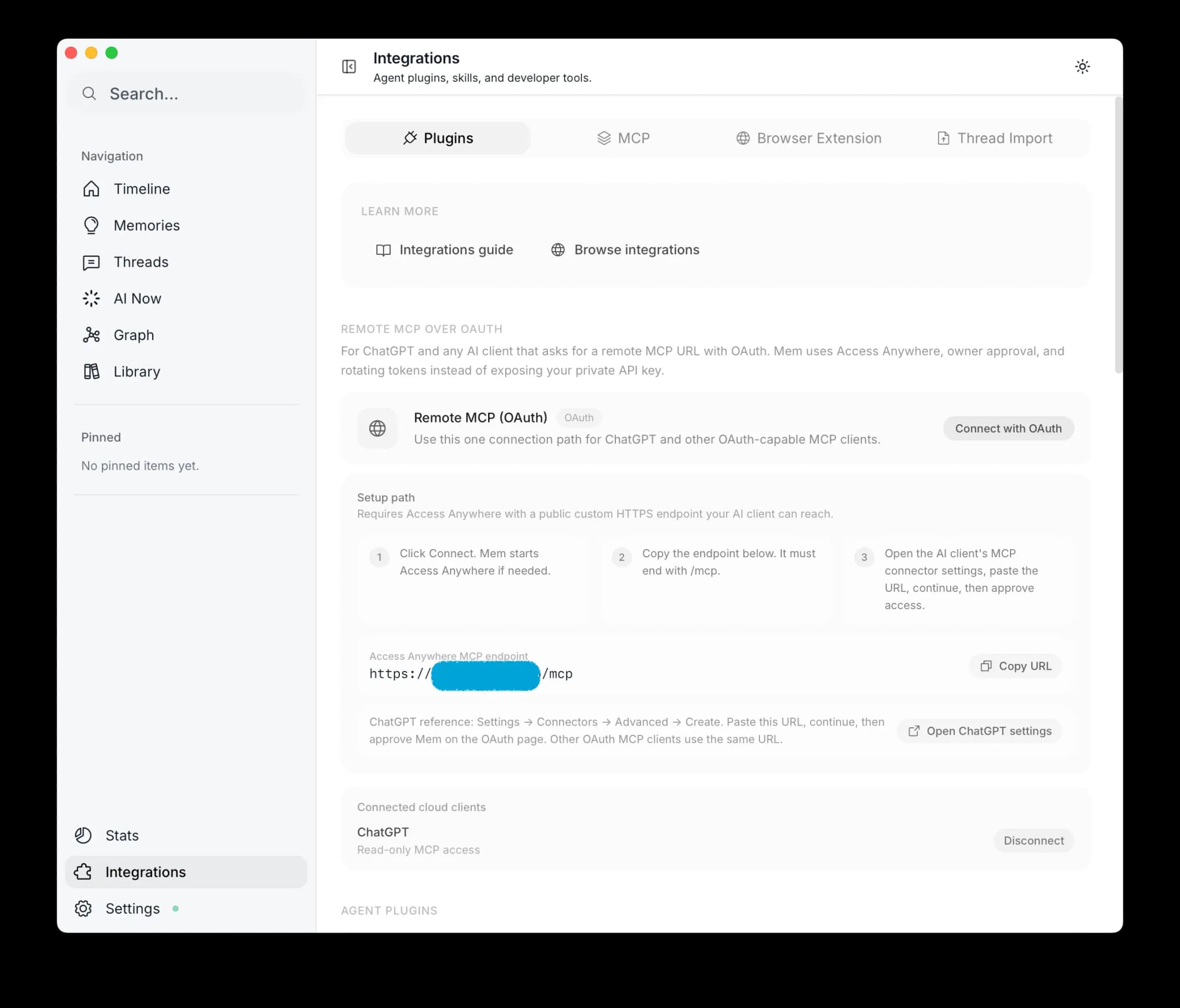
Start Remote MCP OAuth in Mem
Open Mem → Connectors → AI Tools → Remote MCP over OAuth, then click Start setup. You can do this from the desktop app, the desktop app in remote-client mode, or the web client at your public HTTPS Mem address.
Mem opens a pairing page in your browser and copies the /mcp URL. Keep using
that same browser profile for the ChatGPT OAuth approval step.
If you accidentally close the pairing page or ChatGPT's approval page, return to Remote MCP over OAuth in Mem and click Start over. Mem opens a fresh pairing page immediately; you do not need to wait for the previous 30-minute pairing window to expire.
Remote clients use the server you are connected to
If you are using the web client or a desktop app connected to a remote Mem
server, the OAuth setup is created on that remote server. The copied MCP URL
will use that server's public HTTPS address, not 127.0.0.1.
Create a connector in ChatGPT
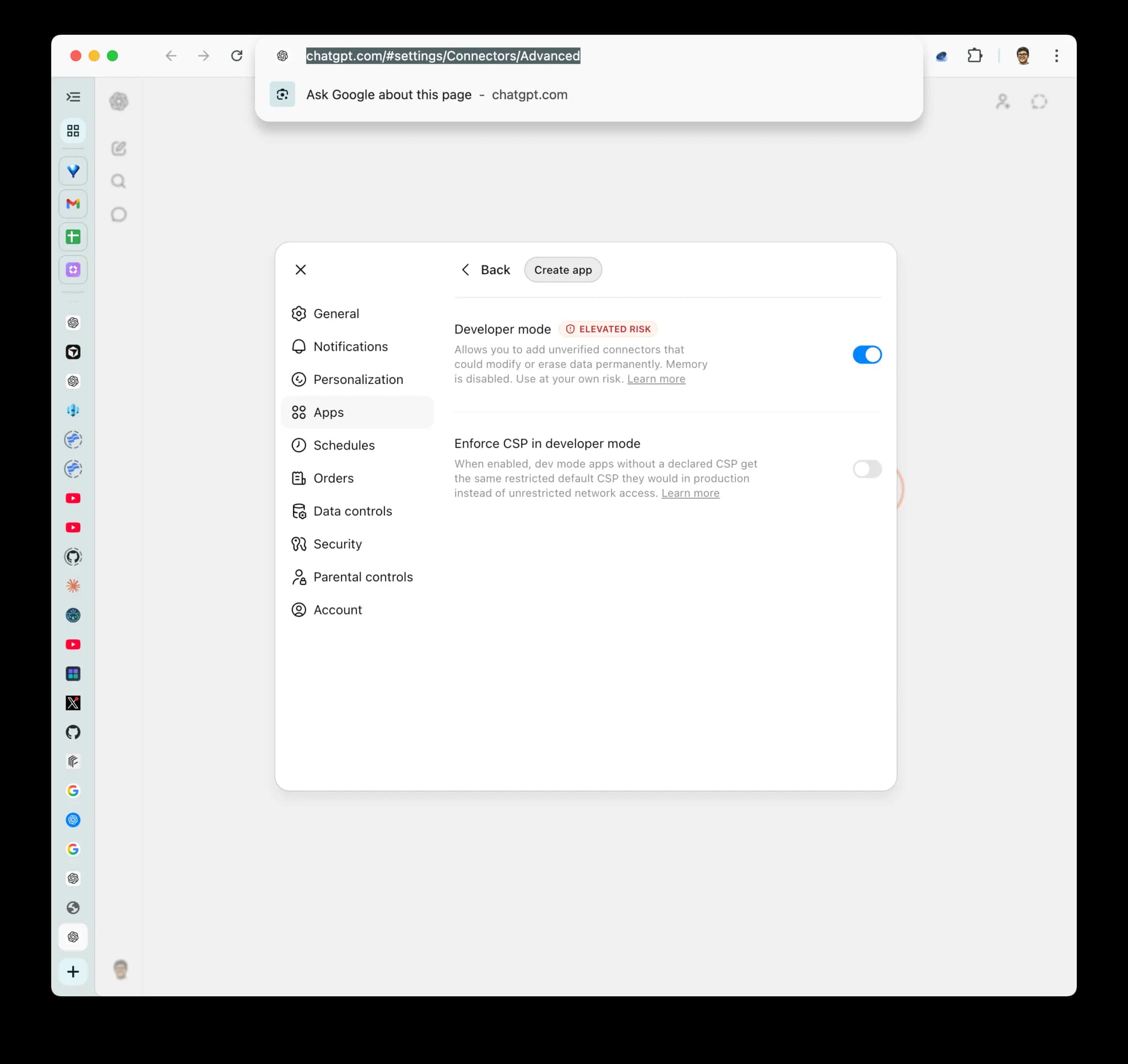
Turn on Developer mode first
Open Settings → Apps → Advanced settings and enable Developer mode. Pro is read/fetch only. Business creation is admin/owner-only. Enterprise/Edu admins can authorize developers to create and test, but an admin/owner must publish. The create action stays hidden when your plan, role, or workspace policy is not eligible.
Open Create a ChatGPT connector.
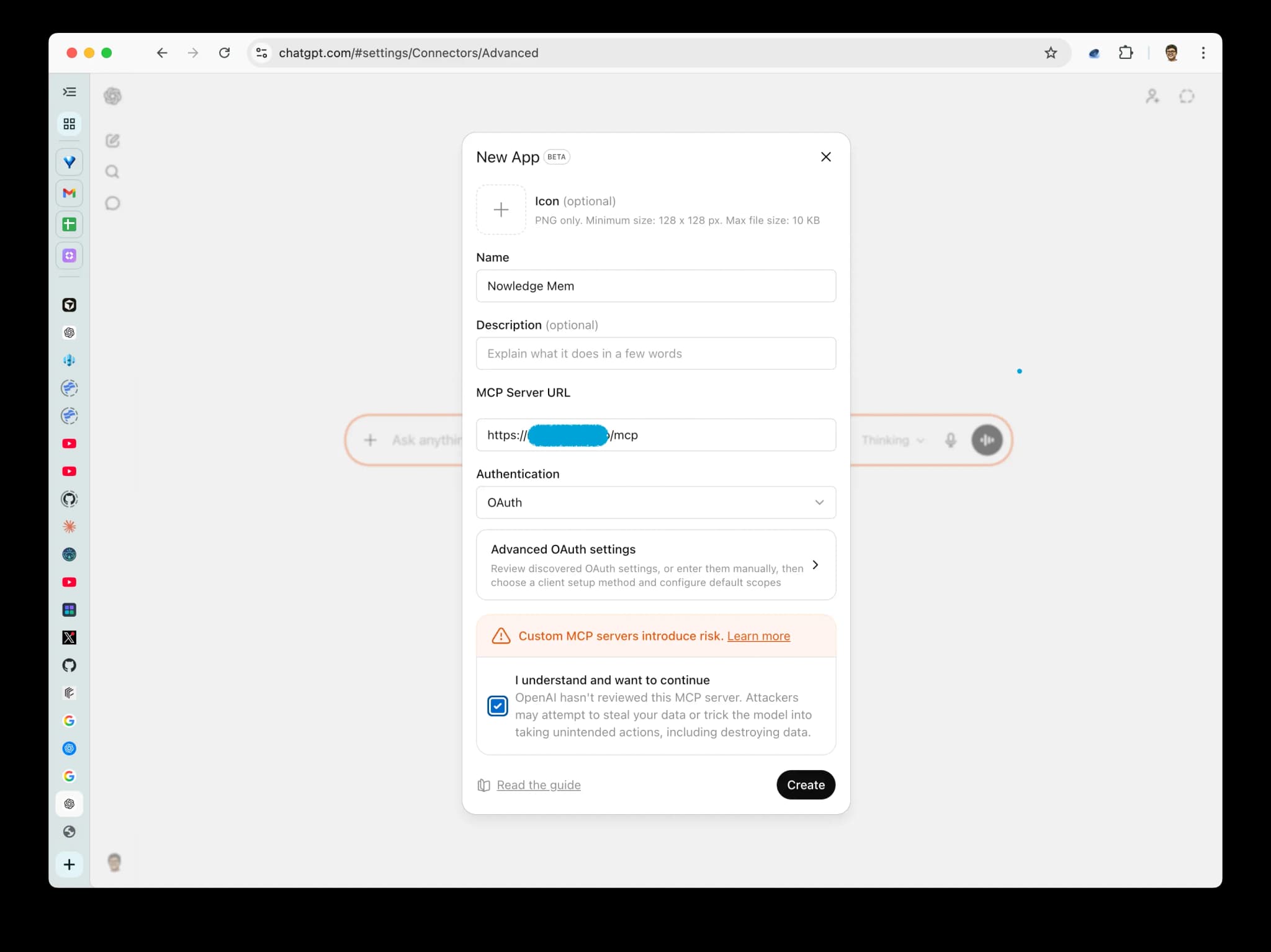
Paste the Mem MCP endpoint
Copy the Cloud MCP endpoint from Connectors if your workspace is
hosted in Nowledge Cloud. For a local workspace, copy the Access Anywhere
MCP endpoint from the setup flow. It must end with /mcp, for example:
https://your-access-anywhere-domain.example/mcpPaste that URL into ChatGPT and continue.
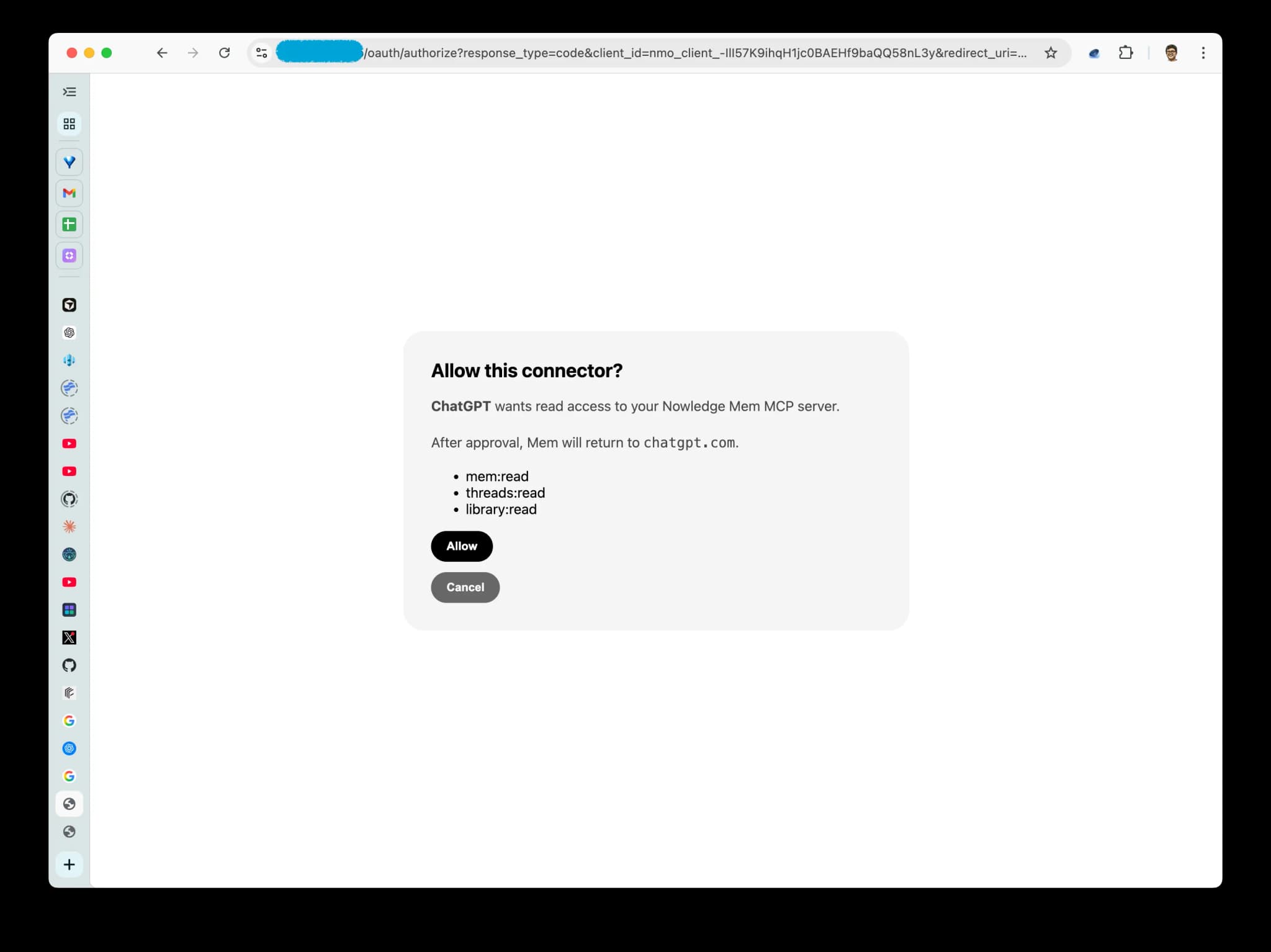
Approve Mem through OAuth
When Mem opens the OAuth approval page, allow ChatGPT to use Mem. If you see "Pair this browser with Mem", return to Mem, click Start over, and continue in the same browser profile that opened the pairing page.
Confirm the App was created
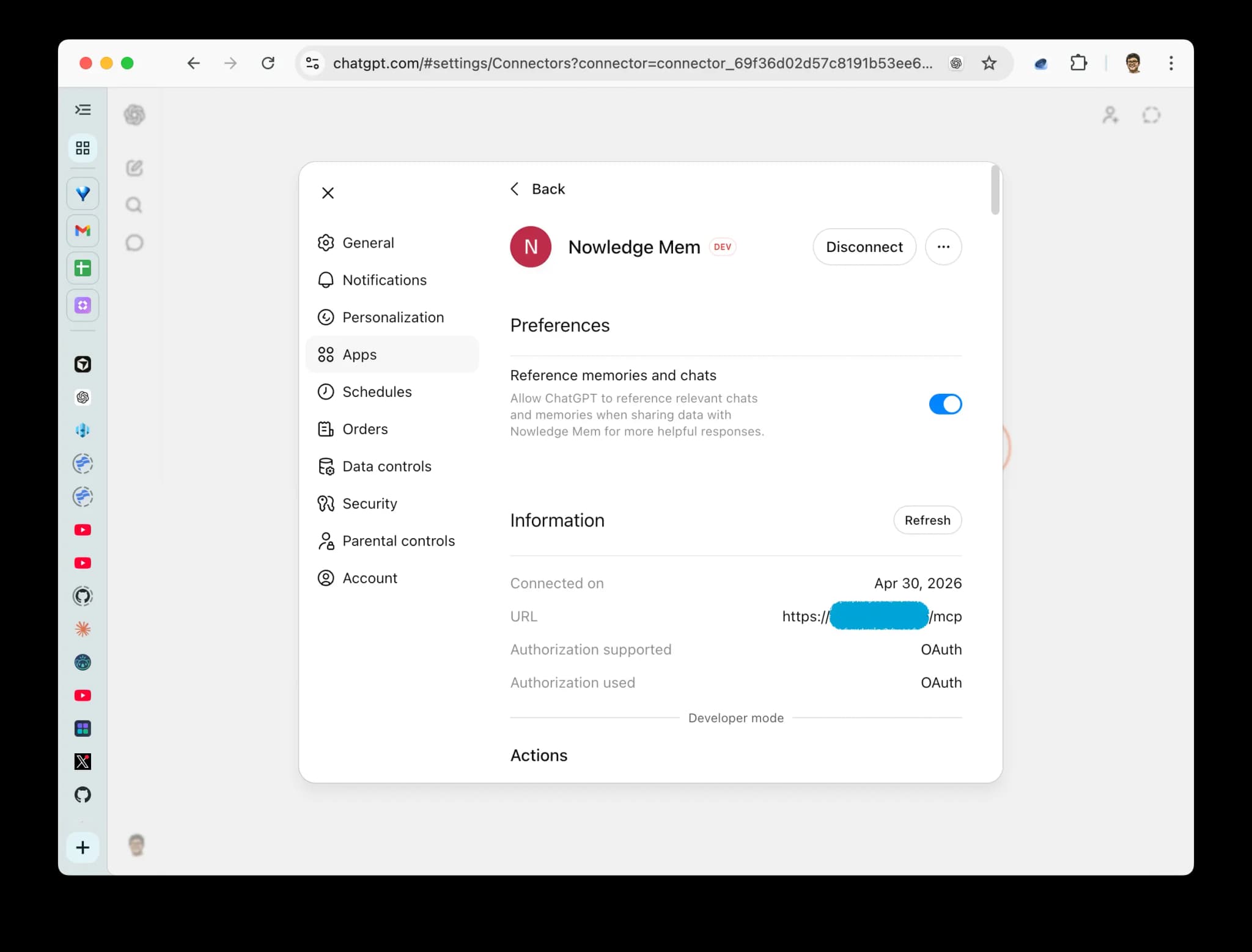
ChatGPT should now show Nowledge Mem in Settings → Apps. Saving the App
creates its real plugin_asdk_app_… technical ID. Record that ID for the later
Plugins Directory submission; public review is a separate release step and is not
required for this private connection.
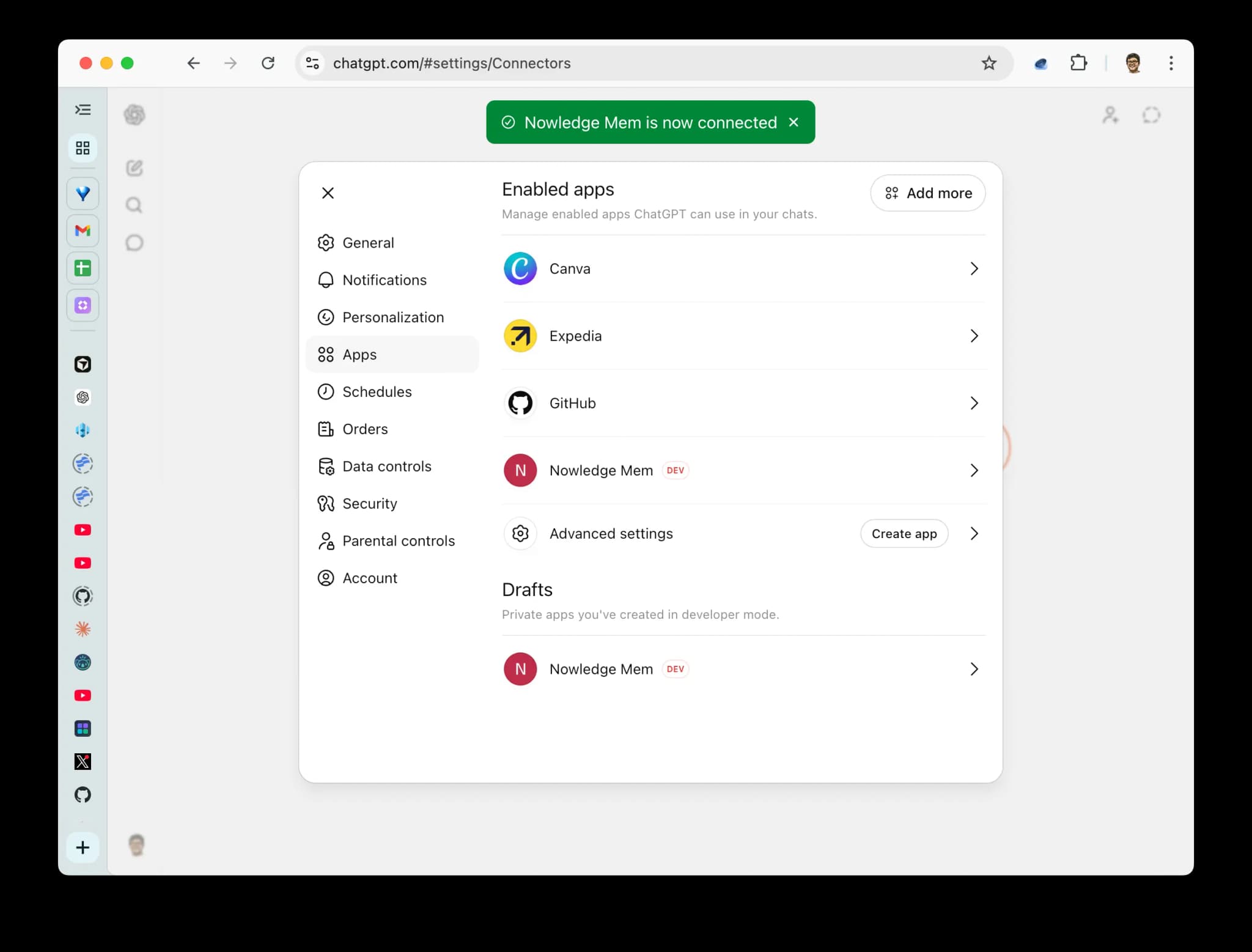
Enable the connector in ChatGPT
Allow the connector for the current ChatGPT workspace or chat context.
Ask ChatGPT to use Mem
Ask ChatGPT to search your Mem context. In ChatGPT Web or the ChatGPT desktop app, mention @Nowledge Mem, then ask for what you need, for example: "Search my Mem for the project decision about the database migration."
On Pro, validate a read such as search or Context Bundle. On Business, Enterprise, or Edu, an eligible workspace can also expose Mem write tools; verify a narrowly scoped write only when the workspace admin has allowed that action.
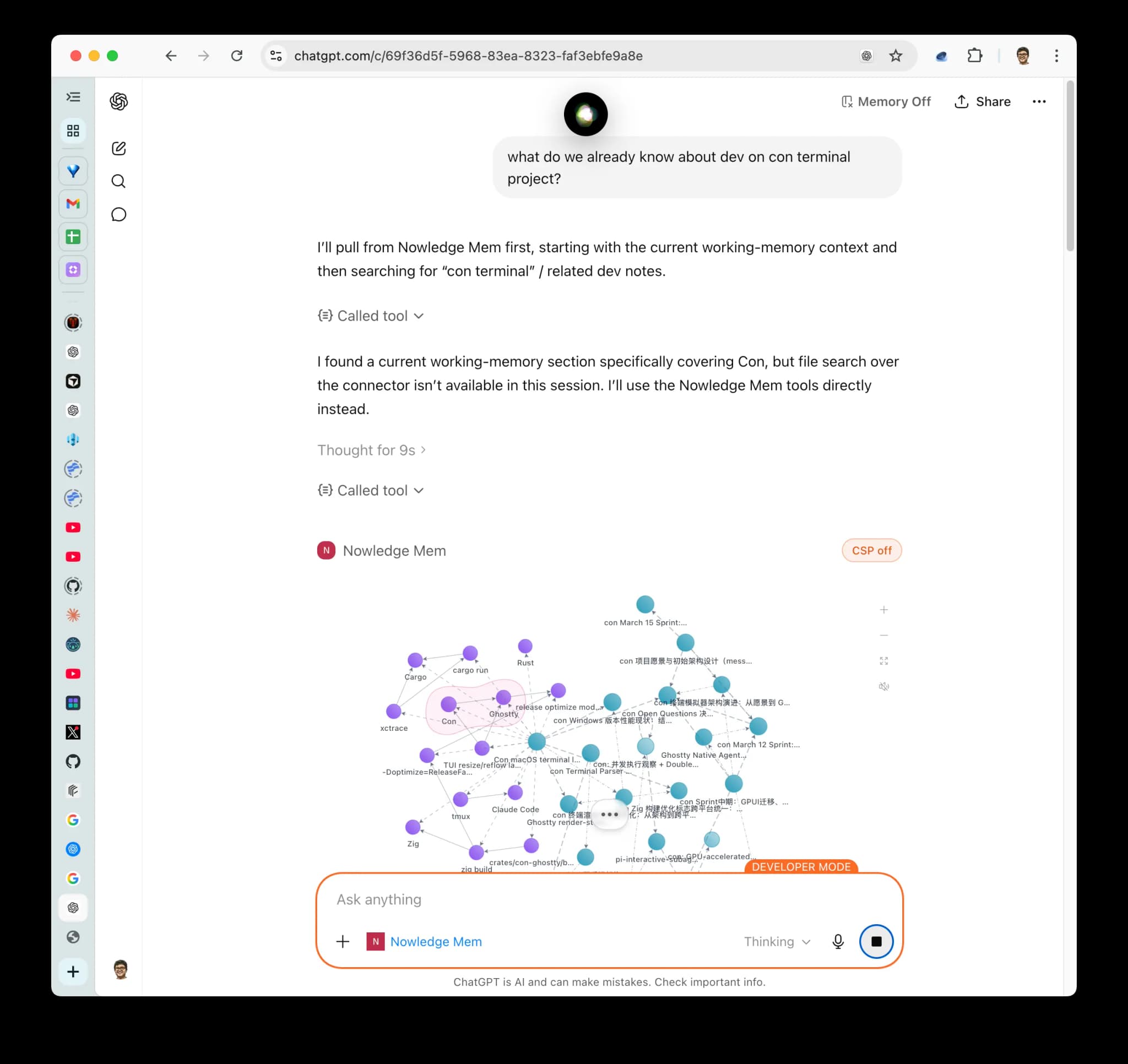
Desktop works after web setup
ChatGPT currently creates custom connectors from the web settings page. Once
the connector is added, the same ChatGPT account can use it in the ChatGPT
desktop app by mentioning @Nowledge Mem in a chat.
Which Path Should I Use?
| Goal | Use |
|---|---|
| Save useful ChatGPT conversations into Mem | Browser extension |
| Let ChatGPT Web or desktop search Mem during a conversation | Remote MCP over OAuth |
| Import years of old ChatGPT history | Import existing conversations |
| Bring over ChatGPT Team or Business history without an official export | Export locally with a tool you trust, then import files with nmem |