
Using Nowledge Mem
How your knowledge works for you through the Timeline, your AI tools, search, and AI Now
If Mem still feels abstract
Go back to Start Here and How To Know Mem Is Working. This page makes more sense once you have already proven one real workflow.
The Timeline
The Timeline is your home screen. Everything lives here: what you capture, what you ask, what the system discovers on its own.
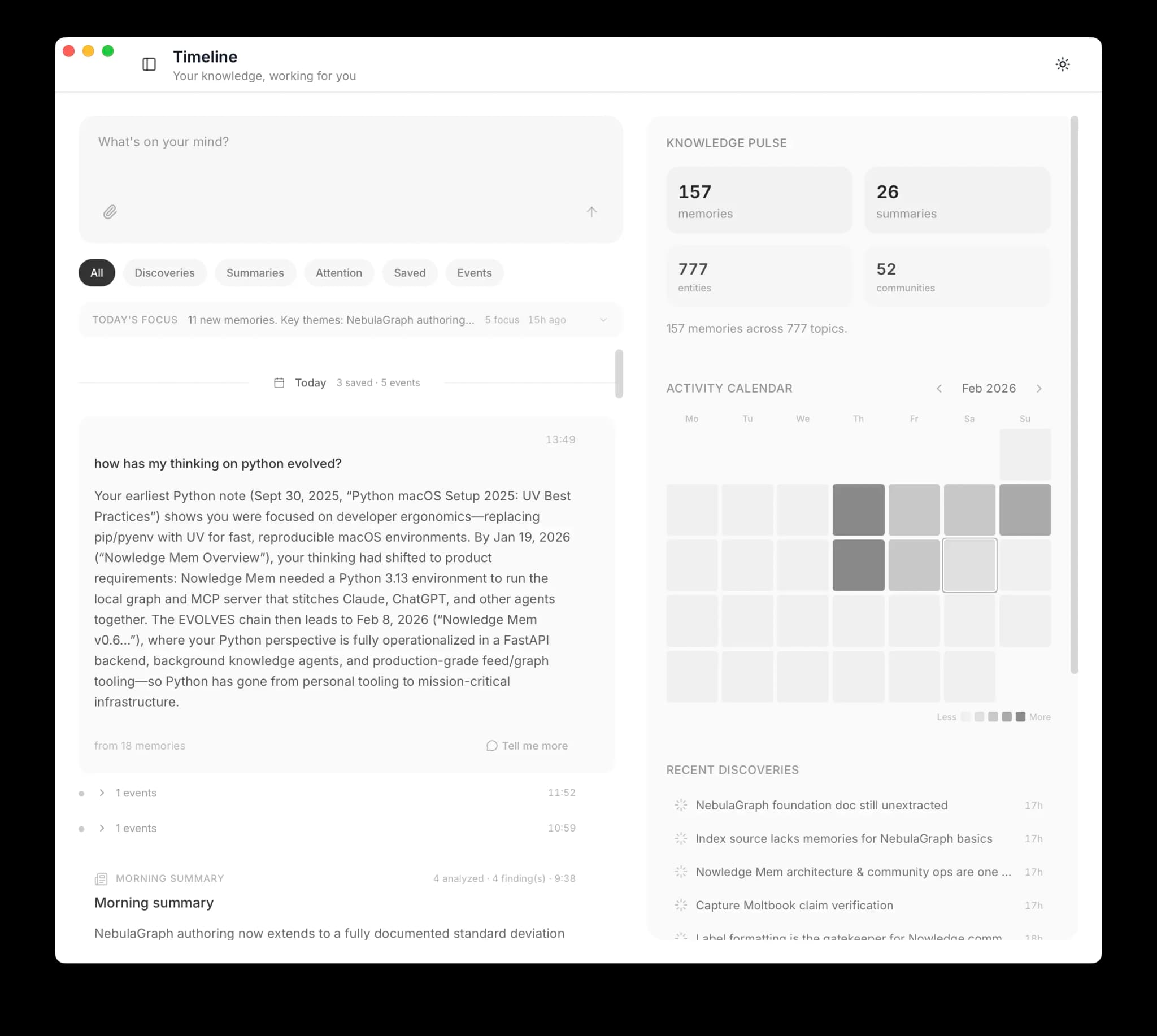
What You'll See
| Item | What it is |
|---|---|
| Capture | A memory you saved, with auto-generated title and tags |
| Question | Your question and the AI's answer, drawn from your knowledge |
| URL Capture | A web page fetched, parsed, and stored |
| Insight | A connection the system discovered between your memories |
| Crystal | A crystal synthesizing multiple related memories |
| Flag | A contradiction, stale info, or claim that needs verification |
| Working Memory | Your daily morning briefing |
Your AI Tools
Connect the AI tools you actually use to your knowledge. Claude Code, Grok Build, Cursor, Codex, OpenCode, Alma, DeepChat, LobeHub, Grok Web, and more can all point back to the same memory system through the right path.
If you are still deciding how to connect a tool, go to Connectors first. This page is about what Mem feels like after one setup path is already working.
Without Mem: "Help me implement caching for the API." Your agent often asks about your stack, your infrastructure, and your preferences. You explain everything from scratch.
With Mem: "Help me implement caching for the API." Your agent can search your knowledge, find your Redis decision from last month and your API rate limiting patterns, and write code that fits your architecture with much less repeated setup.
In the best-integrated setups, this happens without prompting. Native integrations, well-configured reusable workflow packages, and MCP clients with clear intent rules can recognize when your knowledge is relevant and use it automatically.
Save an insight in Claude Code today. Cursor finds it tomorrow when it encounters the same topic. No copying, no exporting.
You can also query directly: "What did I decide about database migrations last month?" Your agent searches your knowledge to answer.
See Connectors for setup instructions.
Search
In the App
Open memory search with Cmd + K (macOS). Search understands meaning, not just keywords. Searching "design patterns" finds memories about "architectural approaches."
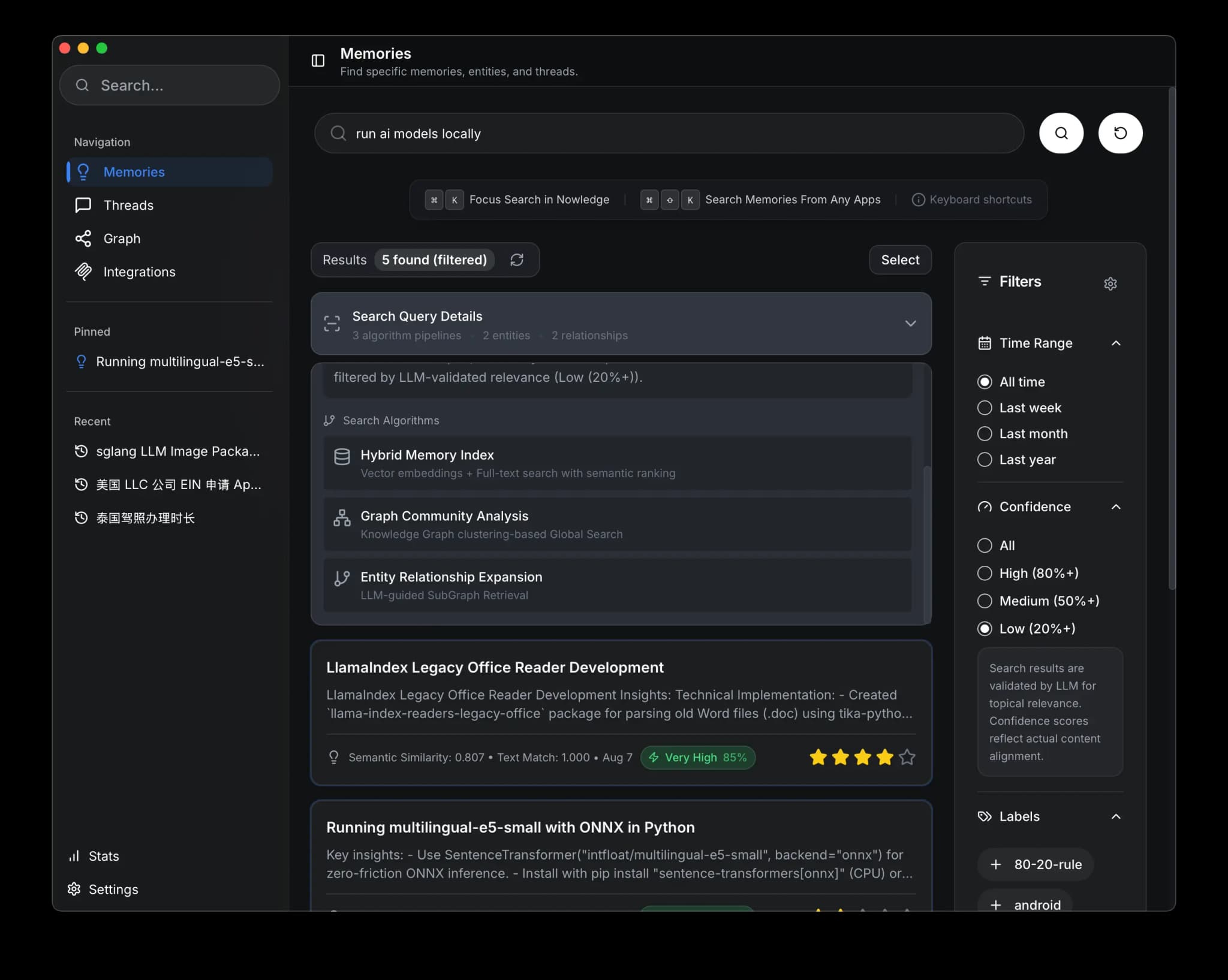
Three search modes work together:
- Semantic finds memories by meaning
- Keyword does exact match for specific terms
- Graph discovers memories through entity connections and topic clusters
From Anywhere
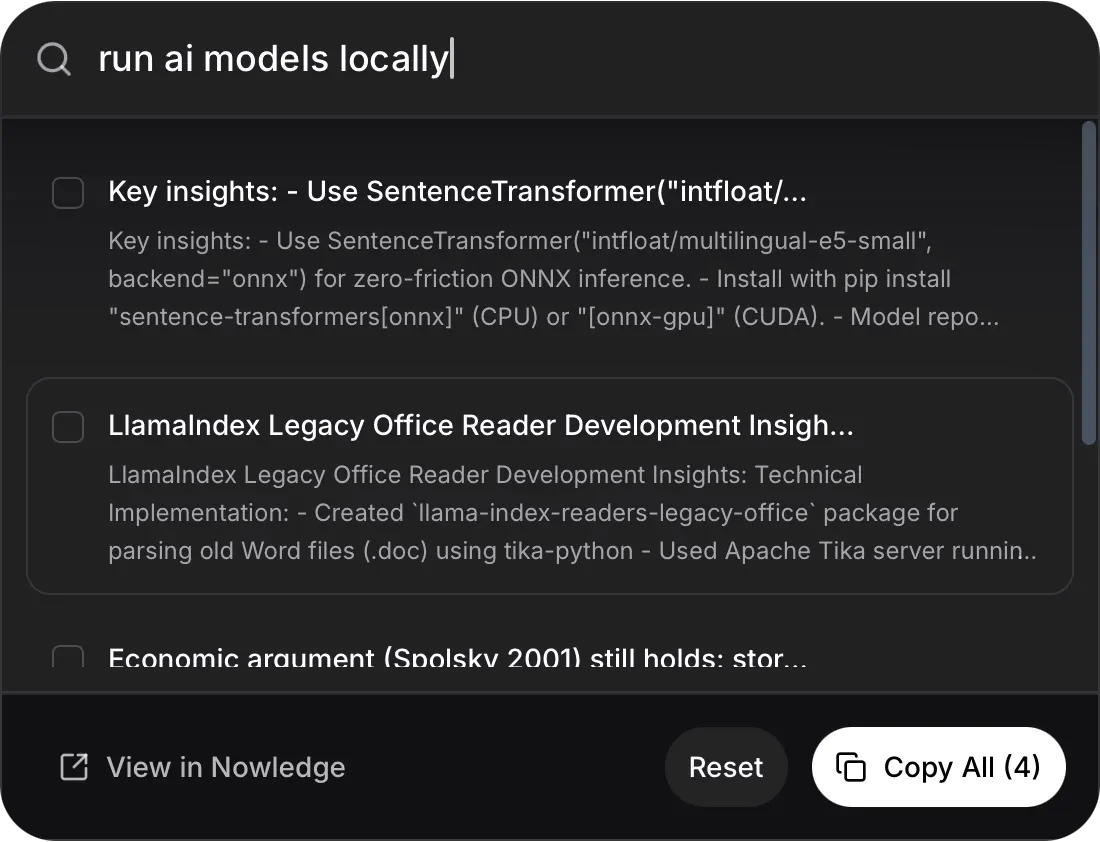
Press Cmd + Shift + K from any application to search without opening Nowledge Mem. Copy results directly where you need them. The Raycast extension brings the same search into your launcher.
What Happens Over Time
After a few weeks of daily use, the system starts working for you in the background.
You save a decision about PostgreSQL on Tuesday. On Thursday, you mention CockroachDB as a migration target. Friday morning, Working Memory notes: "Your database thinking is evolving."
This is Background Intelligence:
- Knowledge evolution. Detects when your thinking on a topic changes and links the versions.
- Crystals. Synthesize scattered memories into reference articles.
- Flags. Surfaces contradictions between past and present thinking.
- Working Memory. A daily briefing your AI tools read at session start.
Requirements
Background Intelligence requires a configured Remote LLM and the appropriate license for your build.
AI Now
A personal AI workspace connected to your Mem server. It can use your saved knowledge, connected notes, files, and enabled plugins, and the same sessions are available from desktop, web, and mobile clients. See AI Now for the full guide.
Command Line
The nmem CLI gives full access from any terminal:
# Search your memories
nmem m search "authentication patterns"

# Add a memory
nmem m add "We chose JWT with 24h expiry for the auth service"

# JSON output for scripting
nmem --json m search "API design" | jq '.memories[0].content'
See the CLI reference for the complete command set.
Remote LLMs
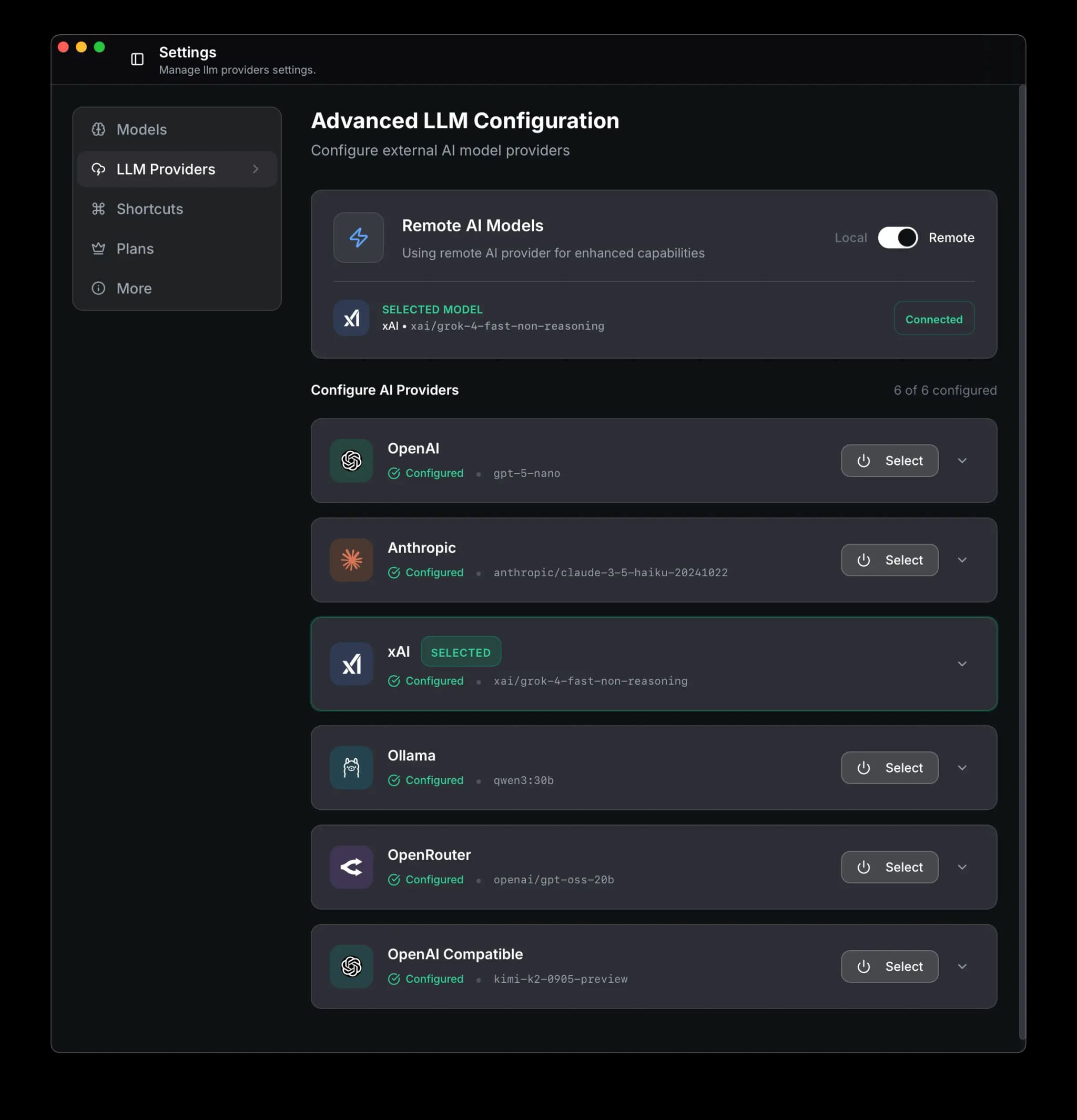
By default, everything runs locally. No internet required. As your knowledge base grows, a remote LLM gives you stronger processing.
Availability
Remote LLM configuration depends on the license and build you are using.
What it unlocks:
- Background Intelligence: automatic connections, crystals, insights, and daily briefings
- Faster knowledge graph extraction
- More nuanced semantic understanding
- AI Now agent capabilities
Privacy: your data is sent only to the LLM provider you choose. Never to Nowledge Mem servers. Switch back to local-only at any time.
Open Remote LLM settings
Go to Settings > Remote LLM
Enable remote mode
Toggle Remote to enable
Add provider and API key
Select your LLM provider and enter your API key
Next Steps
- Start Here: Pick the simplest path for your real workflow
- How To Know Mem Is Working: Confirm search, capture, and connected tools
- Memories: Create, search, organize, and connect your knowledge
- Threads: Capture, browse, and distill AI conversations
- Library: Import documents alongside your memories
- AI Now: Deep research and analysis powered by your knowledge
- Background Intelligence: Knowledge graph, insights, crystals, working memory
- Your Profile: Tell Mem who you are so agents give better results
- Connectors: Choose the right connection path for each AI tool