
Getting Started
Your first five minutes with Nowledge Mem
Do one thing before wiring tools
Save one real memory in the Timeline and confirm you can find it again. If you have not picked a path yet, read Start Here first.
The Timeline
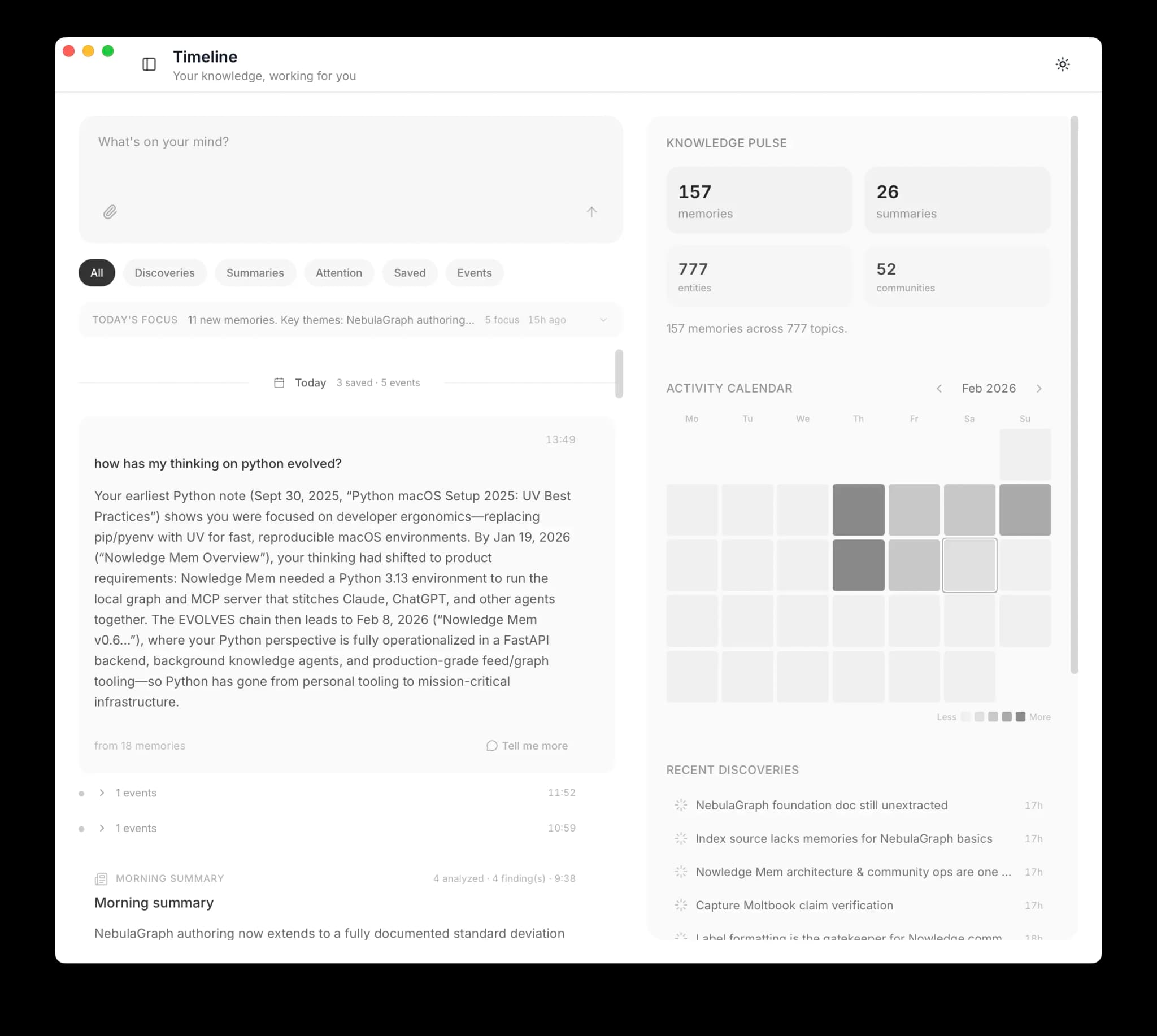
Open Nowledge Mem. You see one input and a timeline below it.
Save a thought
Type a decision, an insight, anything worth keeping. Hit enter.
Nowledge Mem handles the rest: title, key concepts, graph connections. You just write. Open the Graph view later and you'll see it already linked to related memories.
Ask a question
Type a question: "What did I decide about authentication last month?"
The answer comes from your own knowledge: not the internet. Every question searches your full memory and synthesizes an answer from what you've written and saved.
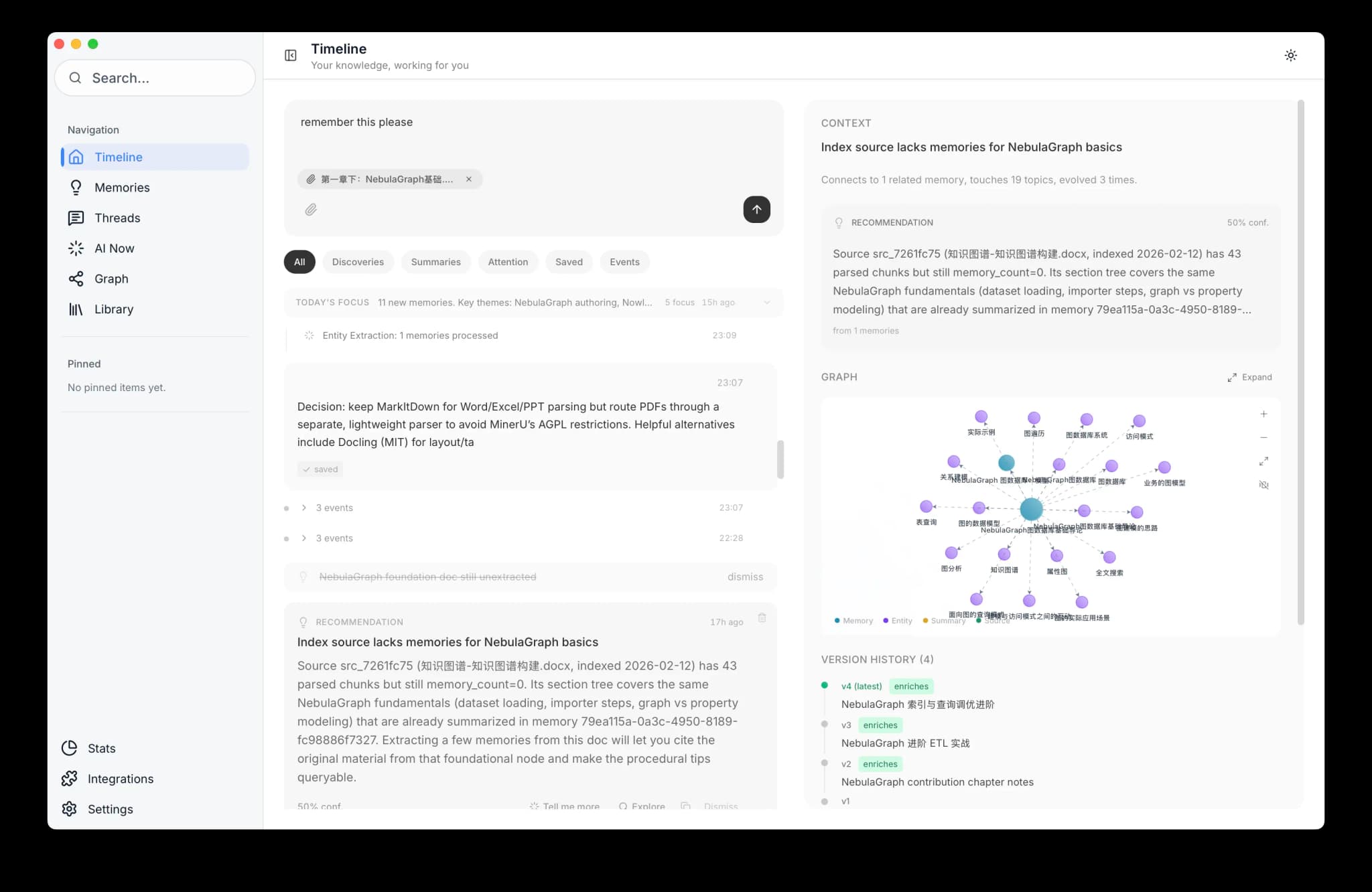
Drop a URL or file
Paste a URL. The page gets fetched, parsed, and stored as a searchable source. Drop a PDF, a Word doc, a presentation. Same treatment. Each input grows your knowledge base.
Your First Win
Before you connect any AI tool, prove the loop in the app itself:
- Save one memory
- Ask for it back
- Confirm the answer reflects your own knowledge
If you want a concrete verification checklist, use How To Know Mem Is Working.
Bring in conversations you already have
If you are not starting from an empty slate (coding assistant logs on disk, ChatGPT / DeepSeek / ChatWise / Alma exports, or one saved .md thread), use Import existing conversations. There you get Threads → Import spelled out: disk scans, bulk vendor files, single files, and the extension on the tab you have open (not your full web chat history in one shot).
Connect Your First Tool
Do not start by picking a tool from a long list. Give your AI tool one prompt and let it choose the best supported setup path:
Read https://mem.nowledge.co/SKILL.md and follow the instructions to install or update Nowledge Mem for the AI tool I am using.Paste this into Claude Code, Grok Build, Codex, Cursor, Gemini CLI, Copilot CLI, OpenClaw, Hermes, Droid, Alma, Bub, Pi, OpenCode, or Claude Desktop. The agent fetches the install contract, detects which host it is in, uses the matching setup path, verifies the connection with nmem status, and asks you to restart the host when needed. Command-line hosts can usually be installed directly. App-based hosts may still require a user-confirmed marketplace step.
Choose one tool only on day one
Pick the AI tool you actually use most. Run the prompt there. Restart that tool. Stop. Adding more tools later is the same one-prompt gesture each time.
Remote or cross-device setup
If Mem runs on the same machine as the AI tool, the generic prompt above is enough.
If the AI tool runs on another machine, or if you are using a managed or self-hosted remote Mem server, configure the shared client settings first:
nmem config client set --url https://your-mem-server.example --api-key nmem_...In the desktop app, remote URL and key controls live under Settings → Access Anywhere.
When the prompt does not fit
A small set of surfaces install differently:
- Web chat (ChatGPT, Claude.ai, Gemini, NotebookLM, Poe): install the Browser Extension from the Chrome Web Store and open the side panel.
- Raycast: install from the Raycast Store. See Raycast.
- Trajectory extractors (Windsurf, Antigravity): external CLIs that export sessions for one-time import. See Import existing conversations.
For per-tool behavior reference once the connect is done (skills, recall strategy, distillation), see the individual connector pages. The connect itself is one prompt.
Other Ways Content Reaches Mem
- Existing chats (map first): Import existing conversations: coding agents on disk, vendor exports, single files, and the extension on the tab you are using
- Web chat (current tab): the browser extension saves the session you work with in the panel, not a full account export (use bulk import for that)
- Thread formats (reference): Threads for Markdown rules and bulk file specifics
- Manual: create memories in the Memories view with + Create, or from any terminal with
nmem m add(CLI reference)
What to Try
Once you have a few memories saved, try these in the Timeline:
"Which of my ideas have evolved the most?" Finds ideas that went through multiple revisions and tells the story chronologically.
"Summarize my recent coding conversations" If your coding conversations are already flowing into Mem through auto-sync, native save paths, or imports, this lists and summarizes your latest sessions.
"Search my documents for [topic]" Full-text search across everything in your Library: PDFs, spreadsheets, code files, anything you dropped in.
Better with time
These get more powerful as your knowledge grows. After a month, the results will surprise you.
Next Steps
- Start Here: Pick the first path that matches your real workflow
- Using Nowledge Mem: Daily workflow, search, and how your knowledge grows
- How To Know Mem Is Working: Verify the app loop and connected tools
- Memories: Atomic knowledge you can search, connect, and evolve
- Import existing conversations: Map every import path in one page
- Threads: Formats, import UI, and distillation
- AI Now: Personal AI with full access to your knowledge base
- Connectors: Connector reference for each AI tool