
AI Now
Personal AI agent with full access to your knowledge, files, and connected services
AI Now is the place where you work directly with your saved knowledge. It runs with your Mem server, so the desktop app, web app, and mobile clients can see the same AI Now sessions when they connect to that server.
Instead of starting from a blank prompt every time, AI Now starts from what you already know. That makes it useful for research, analysis, presentations, and longer multi-step tasks that should build on your own history rather than generic model output.
Requirements
AI Now requires a configured Remote LLM.
Go to Settings → Remote LLM to set up, refer to Remote LLMs for details.
If you're connected to another Nowledge Mem via Access Anywhere, AI Now uses that server's LLM configuration. You do not need to configure a separate provider on each client.
The First Useful Task
If you are opening AI Now for the first time, start with something grounded in your own knowledge:
What architecture decisions have I made about caching?
That is a better first task than a generic prompt because it lets you see the product model immediately:
- AI Now reads from your saved knowledge
- it can pull in files or enabled plugins when relevant
- it can turn the result back into updated knowledge if needed
Your first success state
You know AI Now is set up correctly when one grounded question about your own work gets a useful answer without you re-explaining everything from scratch.
What AI Now Can Do
| Category | What it does |
|---|---|
| Memory Search | Finds relevant memories with semantic understanding |
| Library Search | Searches, reads, and analyzes documents you imported into the Library: PDFs, spreadsheets, Word files, slides, code |
| Deep Research | Multi-source research combining your memories and web search |
| File Analysis | Analyzes Excel, CSV, Word, PDF files you provide |
| Data Visualization | Generates charts from your data |
| Presentations | Creates slides with live preview and PowerPoint export |
| Travel Planning | Creates interactive day-by-day itineraries |
| Connectors | Connects to Notion, Obsidian, Apple Notes, and custom MCP plugins |
Getting Started
Configure Remote LLM
Go to Settings → Remote LLM and add your API key.
Open AI Now
Click the AI Now tab in the sidebar, or press Cmd/Ctrl + 5.
Start a Grounded Task
Start with a task that matches the context you have already given Mem:
What architecture decisions have I made about caching?
When relevant, it pulls from your memories, searches the web, and uses any connected notes or enabled plugins you have configured.
You can also drop files or folders for analysis, request reports based on your recent work, or run a deep study on any topic.
As it works, AI Now can also create or update memories when that is useful.
If you use Spaces, AI Now follows the space currently selected in the app. That lets one AI Now session stay focused on a project or agent context without changing how the rest of Mem works.
Mention memories in your chat
Use @ to search and reference specific memories in your conversation.
Deep Research
For comprehensive research, AI Now runs parallel sub-tasks across multiple sources and synthesizes the results.
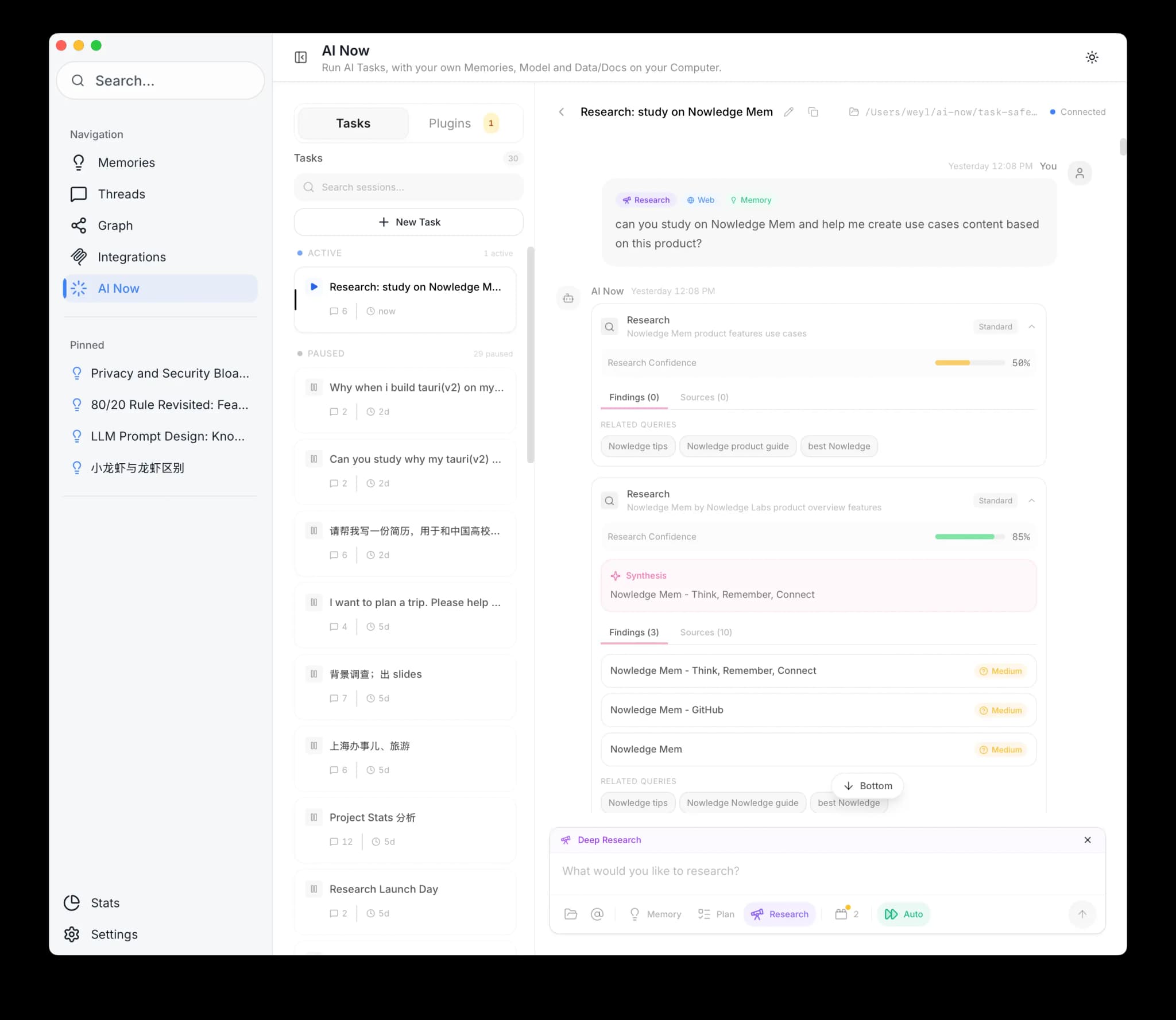
Enable Deep Research
Click the Research toggle in the AI Now chat interface.
How It Works
Ask a research question:
Research the current state of quantum error correction
AI Now will:
- Search your memories for existing knowledge on the topic
- Search the web from multiple angles
- Synthesize findings into a single answer
- Cite sources with reliability indicators
Optional Skills
Skills are specialized capabilities you enable for specific tasks.
| Skill | What it enables |
|---|---|
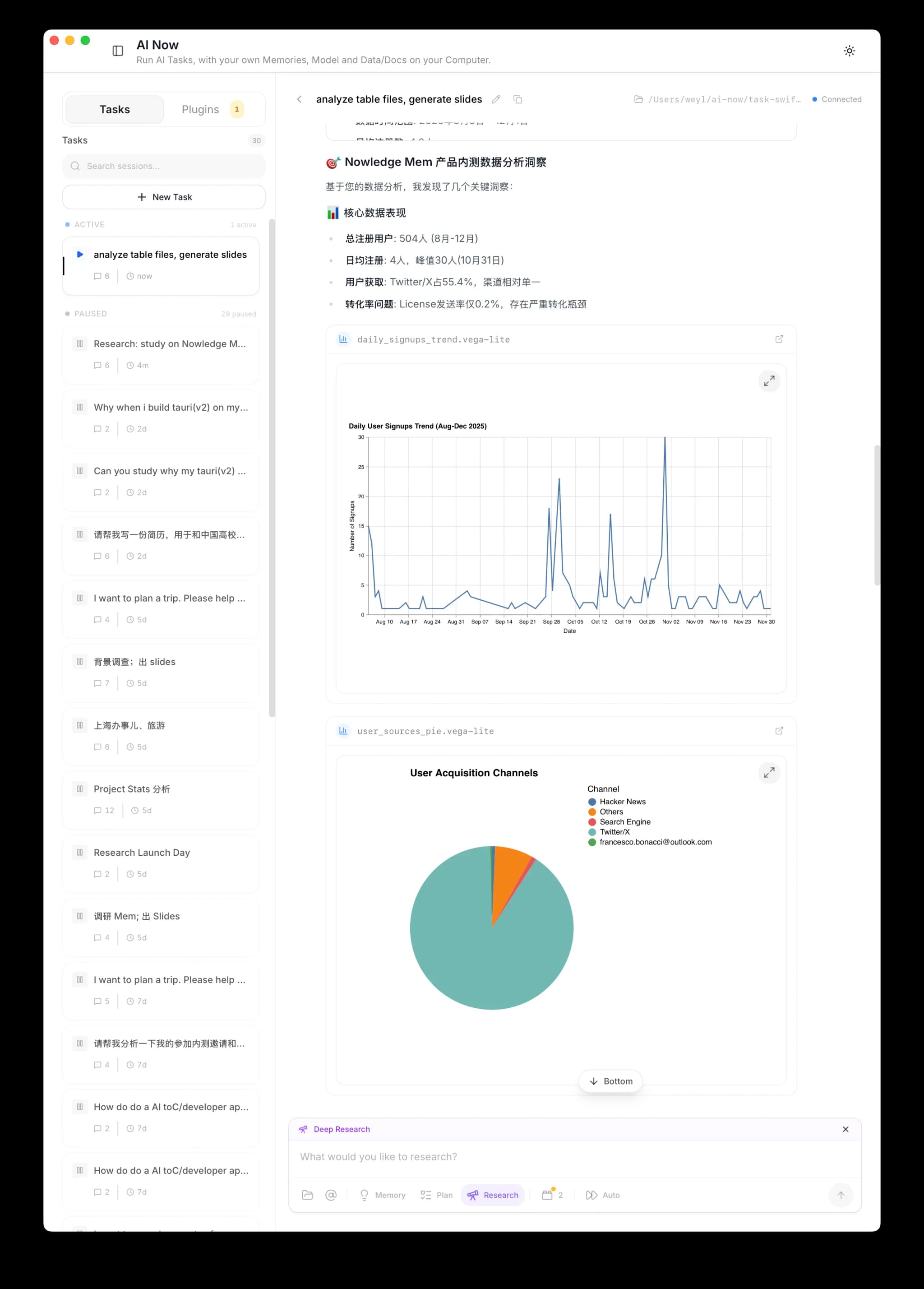
| Documents | Excel/CSV analysis, chart generation, file operations |
| Presentation Creator | Slide generation with live preview and export |
| Travel Planner | Interactive itinerary creation |
| Browse Now | Real-browser automation for authenticated and interactive web tasks |
Enable skills in AI Now → Plugins → Skills.
File Analysis
Attach files or folders to your conversation for analysis.
When you send the message, AI Now copies those attachments into the current
task workspace under inputs/. The agent reads that workspace copy and writes
new charts, scripts, reports, or slides back into the same task folder.
If you are connected to your Mem server through Access Anywhere, the App or Web client securely uploads the selected files into that task before AI Now starts. The server works from its own copy, so the original path does not need to exist on the server. If file attachment is unavailable for a hosted workspace, add the file to your Library and reference it from there.
Documents Skills
Toggle the Documents SKILL in AI Now Plugins to enable.
Supported Files
| Type | Extensions | What AI Now Does |
|---|---|---|
| Spreadsheets | .xlsx, .xls, .csv | Analyzes data, finds patterns, generates charts |
| Documents | .docx, .doc, .pdf | Summarizes, extracts key points, answers questions |
| Code | .py, .js, .ts, etc. | Reviews, explains, suggests improvements |
Example
- Attach
sales_q4.xlsx - Ask: "What are the top 3 trends in this data?"
- AI Now analyzes and generates visualizations
Whole folders work too.
Presentations
Presentation Skills
Toggle the Presentation SKILL in AI Now Plugins to enable.
Create a presentation based on our above study and research, include some charts or diagrams to support the insights
AI Now generates slides with structure, charts, and insights from your conversation.
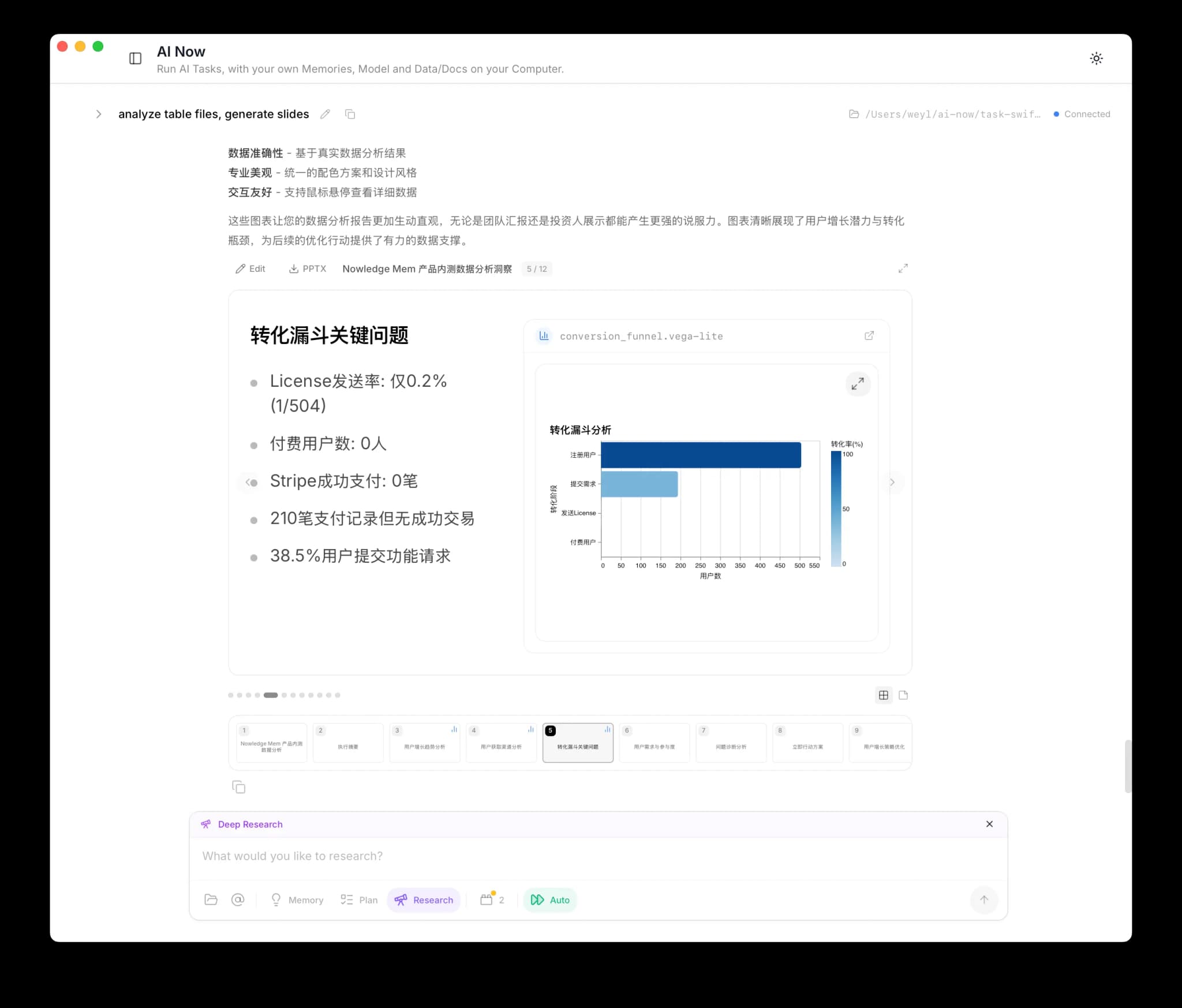
Refine with follow-up requests ("Make the third slide more visual", "Add a slide about customer segments"), or click Edit to edit directly.
Export as PowerPoint with the PPTX button.
Travel Planning
Travel Planner Skills
Toggle the Travel Planner SKILL in AI Now Plugins to enable.
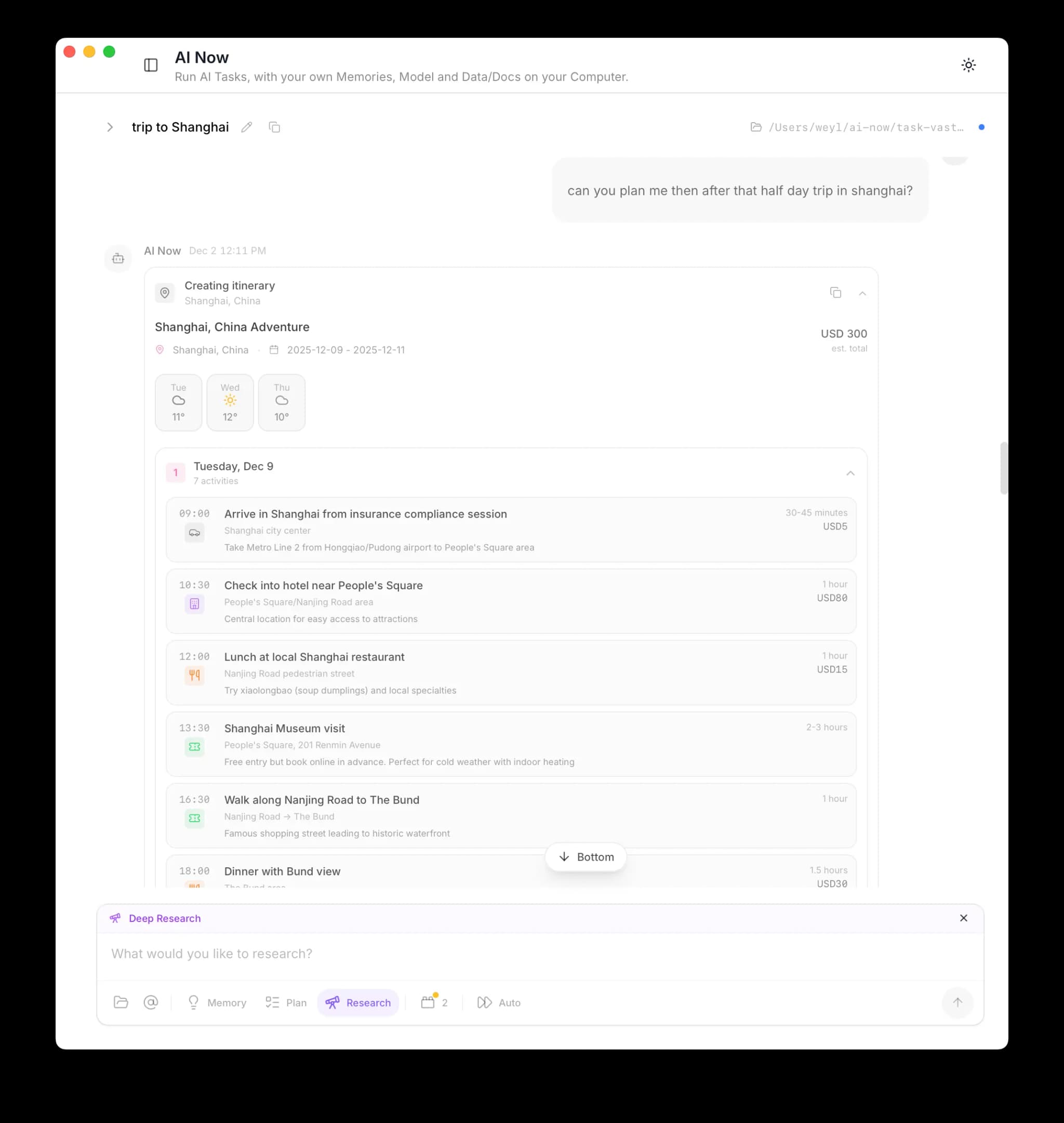
Plan a 5-day trip to Tokyo focusing on food and culture
AI Now generates an interactive day-by-day itinerary using your recent memories and web research as context.
Browse Now
Browse Now Skill
Toggle the Browse Now skill in AI Now → Plugins → Skills to let AI Now use your real browser for authenticated or dynamic pages.
Turn this on when a task needs your actual browser session, not a generic fetch. Typical cases:
- logged-in websites
- clicking, typing, scrolling, or multi-step flows
- screenshots or rendered-page extraction
- dynamic pages where ordinary fetches miss the real UI state
This capability is local-only. The browser bridge runs on the same machine as AI Now and is not exposed through Access Anywhere.
Read the full Browse Now guide for setup, limits, and CLI examples.
Plugins
Extend AI Now with connections to your other apps.
Custom MCP Servers
Use AI Now → Plugins → Add custom MCP when a tool already exposes an HTTP MCP endpoint. Paste the server URL, add any required headers, enable the plugin, then ask AI Now to use that tool.
For local providers such as Lemonade, use the provider page for chat and add the provider's MCP endpoint separately if you also want AI Now to call its tools. STDIO MCP servers are not yet available in the built-in Rust runtime.
Built-in Plugins
Obsidian
- Go to AI Now → Plugins
- Enable Obsidian
- Set your vault path
AI Now can now search and read your Obsidian notes alongside your memories.
Notion
- Go to AI Now → Plugins
- Enable Notion
- Click Connect and authorize in the browser
AI Now can search your Notion pages and databases.
Apple Notes (macOS)
- Go to AI Now → Plugins
- Enable Apple Notes
- Grant permission when prompted
AI Now can search and read your Apple Notes. No vault path or sync setup needed: it reads directly from the system database. Read-only.
Custom MCP Plugins
AI Now supports Model Context Protocol for custom integrations.
Open Custom Plugins
Go to AI Now → Plugins → Custom Plugins
Add MCP Server
Click Add MCP Server
Configure the server
Configure the server (stdio command or HTTP endpoint)
Test the connection
Click Test Connection to verify
Enable the plugin
Enable the plugin
MCP plugins with OAuth (GitHub, Slack, etc.) are detected automatically and prompt for authorization.
Session Management
Conversations are saved automatically. Click a previous session to resume, or create new sessions for parallel workstreams. Each session maintains its own history.
Auto-Approve Mode
Enable Auto to skip confirmation prompts for file operations and other actions.
Use with caution
Auto-Approve grants AI Now permission to act without asking. Only enable for trusted workflows.
Using AI Now from Another Device
If your main Nowledge Mem runs on an always-on machine (a Mac Mini, a server, your office desktop), you can use AI Now from any other device that connects via Access Anywhere.
This is not a separate second knowledge base. You are using the same Mem from another client. If you want the broader model, read Sync Across Devices.
How it works:
- Connect from the desktop app, the web app at
/app, or the mobile app through Access Anywhere - AI Now runs on the Mem server you connected to, using that server's LLM configuration
- Your session list, message history, and pasted images stay with the server, so you can switch clients and continue the same work
- Your memories, threads, and Library are read from the same knowledge base through the secure connection
Web and mobile access
AI Now is available from connected clients because the agent runs on the Mem server. Keep that server running while you work from another device.
Local app plugins
Plugins that read local apps or files, such as Obsidian, Apple Notes, and Browse Now, run on the machine hosting the Mem server. If you connect from a phone or another laptop, those plugins still see the server machine's apps and files.
Tips
- Be specific: "What did we decide about the database migration last month?" beats "database stuff"
- Attach context: drop files or mention notes with
@for better results - Use sessions: separate sessions for different projects or topics
Next Steps
- Access Anywhere: Use Mem from any device, the foundation for multi-device workflows
- Sync Across Devices: Understand the single-Mem, multi-client sync model
- Remote LLM Setup: Configure your AI provider
- Connectors: Connect your AI tools and capture paths
- Background Intelligence: How your knowledge grows on its own