
Raft
Install the Nowledge Mem Cloud Raft App, or keep per-worker local identities with Mem Vault.
Raft connects to Nowledge Mem in two different ways. Use the Cloud path when your knowledge is in a Nowledge Cloud workspace. Use the Mem Vault path when Mem runs on your own computer or server.
Nowledge Cloud
Install the Nowledge Mem Cloud Raft App, then connect it from the Cloud workspace you want the Raft agents to use. You do not need to connect Codex or Claude for each agent, copy an API key into Raft, or set NMEM_AGENT_ID by hand.
Install the App in Raft
- In Raft, open Settings → Applications and select Marketplace.
- Find Nowledge Mem Cloud and choose Install.
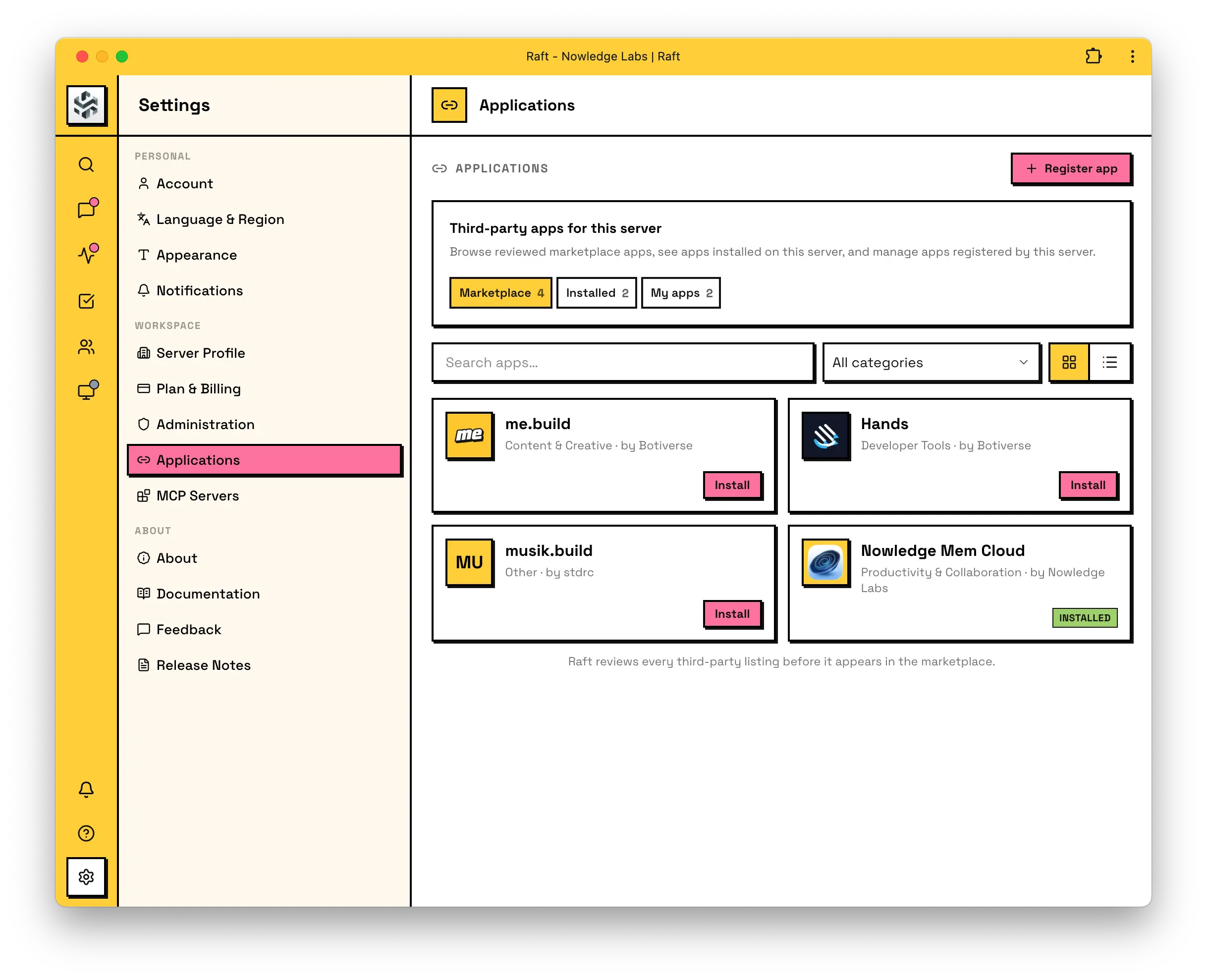
Installing the App makes it available to the Raft server. It does not choose a Nowledge Cloud workspace yet.
Connect the Cloud Workspace
- Open Nowledge Cloud, sign in, and select the workspace you want Raft to use. You need owner or admin permission for that workspace.
- Select Connectors in the left navigation.
- Under Multi-agent orchestrators, find Raft and choose Connect.
- Complete Login with Raft and approve the Raft server you want to connect.
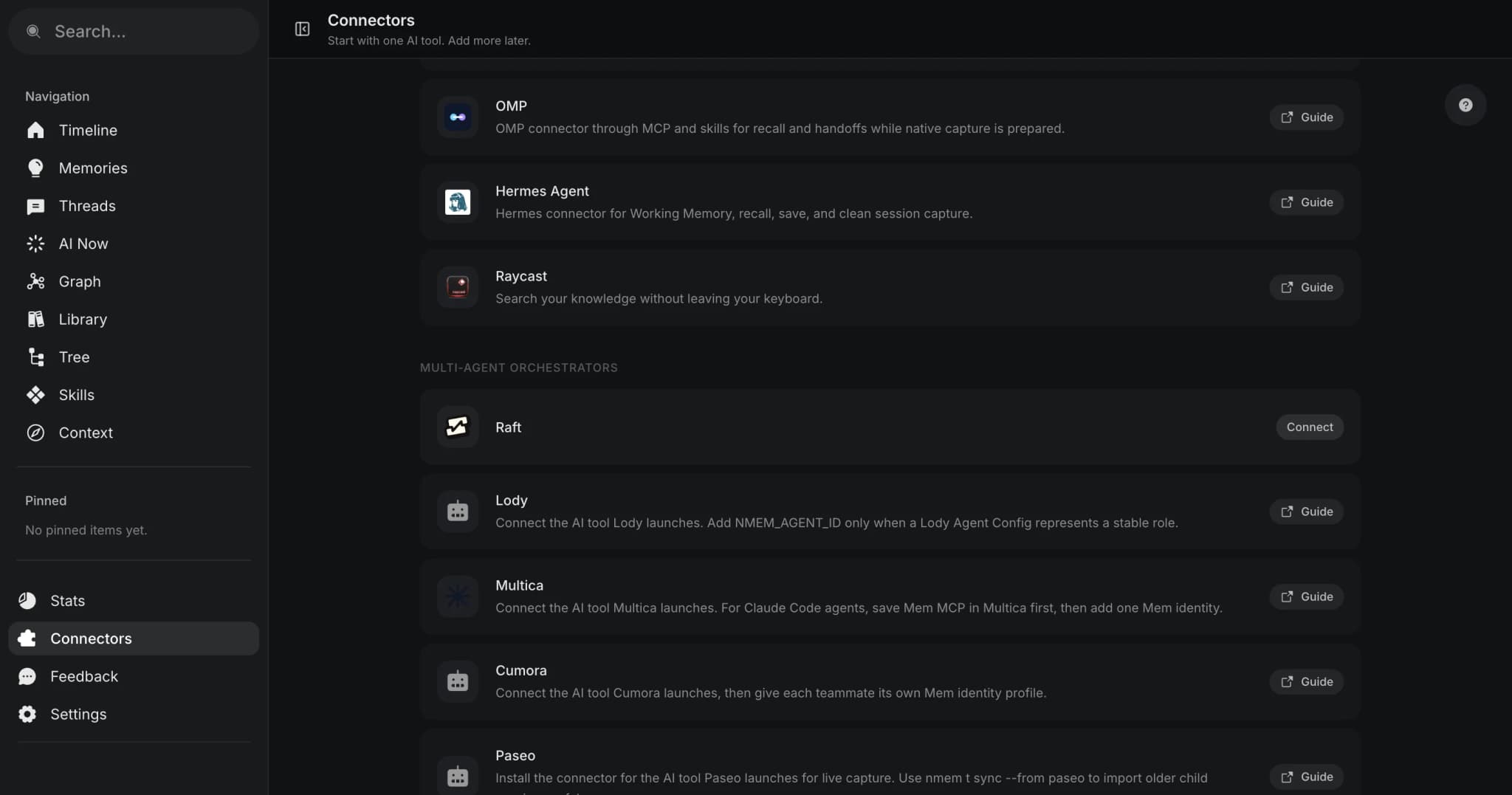
When the flow returns to Nowledge Cloud, the Raft connector should show Connected and list the approved server. Cloud still applies workspace and Teamspace permissions to every request.
Start a New Agent Session
Return to Raft and start a new agent session. The App handles the Raft agent identity and managed Mem connection for sessions started after the connection is complete.
Check That It Works
Ask the Raft agent to check its Nowledge context, then save or find one memory. It should use the approved Cloud workspace without a local Mem server or per-agent environment variables. If the connector does not show Connected, finish the Cloud connection before troubleshooting the agent.
If you use Nowledge Cloud, skip the Mem Vault setup below and continue with the shared execution-trace boundary.
Mem Vault
Raft can run several named agents on the same computer. Nowledge Mem treats those agents as separate workers, not as one anonymous Codex or Claude session.
The setup is deliberately small: connect the AI tool Raft launches first, then set one environment variable on each Raft agent.
What You Need
- Nowledge Mem is running.
- The AI tool Raft launches is already connected to Mem, such as Codex or Claude Code.
- Each Raft worker has a stable role, such as Cindy, Alice, or Reviewer.
First Useful Setup
Create one Mem AI Identity for the Raft worker:
nmem agents upsert cindy \
  --name "Cindy" \
  --default-space onboarding \
  --instructions "Help with onboarding. Explain one step at a time."
This creates the Mem AI Identity named Cindy. Its command and environment ID is cindy.
This command only creates the identity record. It does not make every Codex session use Cindy. The identity is used only where you set NMEM_AGENT_ID=cindy or explicitly pass agent_id="cindy".
Then open the Raft agent's runtime config and add one environment variable:
NMEM_AGENT_ID=cindy
That is enough when the Mem AI Identity already has a default space.
Moving Cindy Later
The Cindy identity belongs to Mem, not to Raft. If you later move Cindy to another orchestrator, keep NMEM_AGENT_ID=cindy and configure the new launcher to pass that environment variable.
The AI tool can change too. Cindy can start in Codex and later run in Pi or Claude Code. In that case, update the connector and --source-app to the new AI tool, but keep the same Mem AI Identity.
If you need a related but different worker, create a new identity such as cindy-reviewer. That keeps Cindy stable while letting the new worker evolve its own Rules.
When To Add Space
NMEM_SPACE is optional. It applies to the whole Raft runtime process.
Use it only when this Raft agent should override the identity's default space for every Mem read and write during that run:
NMEM_SPACE=onboardingIf the agent may work across different projects, leave NMEM_SPACE unset and change the active space from Mem or from the command the agent runs.
Do Not Add A Second Identity By Default
Most users should not set NMEM_HOST_AGENT_ID.
Use NMEM_HOST_AGENT_ID only when an integration author or advanced user needs to map an immutable external worker ID, such as raft:<uuid>, onto a Mem AI Identity. For normal Raft setup, NMEM_AGENT_ID=cindy is clearer and enough. The legacy slock: prefix remains supported.
What Success Looks Like
With nmem 0.9.0 or later, start a fresh Raft worker session and ask it to check Mem:
nmem --json context --source-app codexInside the Raft worker, the command should inherit NMEM_AGENT_ID=cindy and return the worker identity you configured. If you run the same check from a normal terminal instead, pass the identity explicitly:
nmem --json context --agent-id cindy --source-app codexMemory calls inside the worker use codex, claude-code, or whichever runtime Raft launched as their source. A future native Raft Thread connector will use raft for the human-visible conversation and retain the child runtime as metadata.
Keep Execution Traces Out of Threads
This boundary applies to both the Nowledge Cloud and Mem Vault paths.
Raft's managed compute uses Codex as a worker, but Raft owns the human conversation through its inbox and message transport. The Codex rollout records control notices and tool execution; replies sent with Raft's messaging tool are not preserved there as normal Codex assistant messages. Importing that rollout would create a misleading Thread.
Nowledge Mem therefore skips Codex rollouts whose structured session originator is raft-daemon. The legacy slock-daemon originator remains supported. This is checked per transcript, so ordinary Codex sessions on the same computer continue to capture automatically.
Use Mem skills or MCP inside Raft for Working Memory, recall, and durable saves. Lossless Raft conversation history requires a Raft-native conversation connector; until that boundary is available, do not use nmem t save --from codex for a Raft-managed worker.