
Nowledge Mem CLI
Command-line interface for Nowledge Mem. Terminal access, scripting, and AI agent integration.
The nmem CLI gives you terminal access to your Nowledge Mem knowledge base. Search memories, browse threads, read and edit Working Memory, explore the knowledge graph, and view your activity feed, all from the shell.
If you also need browser automation, the desktop app bundles a second CLI called browse-now. It works with the Nowledge Mem Exchange extension to let agents control the user's real browser for authenticated and interactive web tasks. That browser bridge is local-only and is not exposed through Access Anywhere.
Installation
Option 1: Standalone CLI Package
Install on any machine. Works with a local or remote Nowledge Mem server:
pip install nmem-cli

# or with uv
uv pip install nmem-cli

# on Fedora / RPM-based Linux, use the community-maintained COPR package
sudo dnf copr enable abn/nowledge-mem
sudo dnf install nowledge-mem-cli

# on Arch Linux, use the community-maintained AUR package
yay -S nmem-cli
# or: paru -S nmem-cli

# or run without installing
uvx --from nmem-cli nmem --help
Requirements: Python 3.11+, Nowledge Mem running locally or reachable remotely.
Remote Access
The standalone package lets you reach your Nowledge Mem from servers, CI/CD pipelines, or remote workstations. See Access Mem Anywhere. View on PyPI.
Arch Linux
The AUR package is community-maintained by czyt and follows the PyPI nmem-cli release. As with any AUR package, review the PKGBUILD before installing.
Fedora / RPM-based Linux
The COPR package is community-maintained by abn. Use nowledge-mem-cli for CLI-only machines, nowledge-mem-server for headless servers, or nowledge-mem for the full local desktop experience.
Option 2: Bundled with Desktop App
macOS
Go to Settings → Preferences → Developer Tools and click Install CLI.
Installs to /usr/local/bin/nmem.
Windows
The CLI is automatically available after app installation. Open a new terminal window to use nmem.
Quick Start
nmem status                              # Check connection
nmem ask "What did we decide about deployment?"
nmem ask "What changed?" --space work --ephemeral
nmem m search "project notes"           # Search memories
nmem m search "project notes" --space work
nmem m add "Key insight" --title "Learning"
nmem wm                                  # Read today's Working Memory
nmem wm --space work                     # Read Working Memory for one space
nmem spaces                              # List known spaces
nmem f --days 1                          # Today's activity
nmem g expand <memory-id>               # Explore graph connections
nmem tui                                 # Interactive terminal UI
Global Options
| Option | Description |
|---|---|
-j, --json | Machine-readable JSON output |
--api-url <url> | API URL (default: http://127.0.0.1:14242) |
--space <space> | Run the command inside one named space when you want a non-default context |
-v, --version | Show version |
-h, --help | Show help |
Aliases: m = memories · t = threads · wm = working-memory · g = graph · f = feed · c = communities
Ask your knowledge (nmem ask)
Ask across Memories, past conversations, Library documents, and graph connections from the terminal:
nmem ask "What did we decide about the authentication migration?"
nmem ask "Summarize the evidence" --space "Research"
nmem ask "Is this documented anywhere?" --ephemeral
nmem --json ask "Which sources support this decision?"
By default, the question and completed answer are saved to Timeline so you can
reopen the evidence or continue the conversation later. Use --ephemeral for a
one-off answer that should not create a Timeline entry. Progress is written to
stderr and the answer to stdout, so ordinary shell piping stays clean;
--json returns one terminal object with the answer, evidence references,
retrieval coverage, and Timeline event ID.
--space follows that Space's normal strict/shared/all retrieval policy. It
does not bypass Space boundaries.
Memory Commands (nmem m)
Spaces are optional
If you do not use spaces, ignore --space and keep working in the default space. When you do need separate project or agent contexts, the same commands work with --space "<space name>".
List memories
nmem m                        # Recent 10 memories
nmem m -n 50                  # List 50
nmem m --importance 0.7       # Minimum importance filter
Search
nmem m search "authentication patterns"
nmem m search "authentication patterns" --space work
nmem m search "API design" --importance 0.8
nmem m search "deploy" -l devops -l backend    # Filter by labels (AND)
nmem m search "renewal" --metadata customer=acme --metadata purpose=contract-review
nmem m search "sprint" --mode deep             # Graph + LLM-enhanced results
nmem m search "old deployment notes" --include-history
Search shows where a memory came from and how old it is in the default table. By default, recall returns current memories only; memories that were superseded by a newer version stay in graph history but do not keep competing in normal search. Use --include-history when you are auditing how an answer changed over time.
Use --metadata key=value for stable fields your workflow already knows, such as
customer, project, material type, or purpose. Repeat --metadata to narrow the
memory set before ranking.
Bi-temporal search. Distinguish when something happened from when you saved it:
nmem m search "database decision" --event-from 2025-01 --event-to 2025-06
nmem m search "meeting notes" --recorded-from 2026-01-01| Option | Description |
|---|---|
-n | Max results |
-l, --label | Filter by label (repeatable) |
--metadata, --meta | Filter by memory metadata key/value (repeatable) |
--importance | Minimum importance (0–1) |
--mode | normal (default, fast) or deep (graph + LLM-enhanced) |
--include-history | Include superseded/deprecated memory versions |
--event-from/to | When the fact happened (YYYY, YYYY-MM, or YYYY-MM-DD) |
--recorded-from/to | When it was saved to Nowledge Mem (YYYY-MM-DD) |
Add
nmem m add "We chose PostgreSQL for task events"
nmem m add "Prefer functional components in React" \
  --title "Frontend conventions" \
  --unit-type preference \
  --importance 0.8 \
  -l frontend -l react

# Record when something actually happened (bi-temporal)
nmem m add "Decided to sunset the legacy API" \
  --unit-type decision \
  --event-start 2025-11 \
  --when past

# Preserve provenance when an agent distills a thread
nmem m add "The migration script must run after the schema check" \
  --unit-type learning \
  --source claude-code \
  --source-thread thread_abc \
--source-msg msg_042| Option | Description |
|---|---|
-t, --title | Memory title |
-i, --importance | Importance 0–1 |
-l, --label | Add label (repeatable) |
--unit-type | fact preference decision plan procedure learning context event |
--event-start | When it happened (YYYY, YYYY-MM, YYYY-MM-DD) |
--event-end | End of a time range |
--when | past present future timeless (default: timeless) |
--source-thread | Thread ID this memory was distilled from |
--source-msg | Message ID this memory was distilled from |
--source-range | Message index range, for example 12:18 |
Review memory types
Use this when old or weakly typed memories should be reviewed against the current type system. The command defaults to a dry run. Applying changes updates only memory metadata and search-index filter metadata; it does not rewrite memory content, re-embed memories, or rebuild the search index.
nmem m reclassify-types
nmem m reclassify-types --target-type procedure
nmem m reclassify-types --unit-type learning --unit-type decision --target-type procedure
nmem --json m reclassify-types --target-type procedure --wait
nmem m reclassify-types --apply --target-type procedure --limit 50
Use --target-type procedure when you are repairing reusable how-tos that were previously saved as decisions or learnings. Use --wait when a script wants the Feed result for the exact review request before continuing.
Show
nmem m show <id>
nmem m show <id> --content-limit 500
Update
nmem m update <id> --title "New title"
nmem m update <id> --importance 0.9
nmem m update <id> --content "Updated content"
Deprecate or supersede
Use lifecycle commands when a memory is no longer true. This keeps the old memory available for history while removing it from normal recall.
nmem m deprecate mem_old --reason "The API changed"
nmem m supersede mem_old mem_new --reason "The newer deployment decision replaced it"
supersede is not a delete. It records an EVOLVES replaces link from the old memory to the new memory, moves labels forward to the replacement, and leaves the older memory available through history views and m search --include-history.
Move between spaces
Use this when you already saved memories in one space and want to move them into another one.
nmem m move <id> --space "Research Agent" --to-space "Archive"
nmem m move <id1> <id2> --space "Research Agent" --to-space "Archive" -f
nmem m move --all-in-space "Research Agent" --to-space "Archive" --dry-run
nmem m move --all-in-space "Research Agent" --to-space "Archive" -f
--space is the source space. --to-space is the destination. For whole-space moves, use --dry-run first if you want to preview the count before changing anything.
Delete
nmem m delete <id>
nmem m delete <id> -f          # Skip confirmation
nmem m delete <id1> <id2>      # Multiple IDs
nmem m delete is interactive by default. For scripts, agents, CI, or any non-interactive shell, use -f so the command does not block waiting for confirmation.
Thread Commands (nmem t)
List and search
nmem t                                  # Recent threads
nmem t list --source openclaw -n 20     # Recent OpenClaw threads only
nmem t list --offset 20 -n 20           # Next page of recent threads
nmem t search "architecture decisions"
Use list when you want the newest threads in order. Use search when you want full-text matches inside thread content.
Show
nmem t show <id>
nmem t show <id> -n 50                 # Show up to 50 messages
nmem t show <id> --content-limit 200
Create
# From text
nmem t create -t "Quick note" -c "Remember to review the API changes"

# From a file
nmem t create -t "Meeting notes" -f notes.md

# With structured messages
nmem t create -t "Chat session" \
  -m '[{"role":"user","content":"Hello"},{"role":"assistant","content":"Hi!"}]'

# With a stable ID (idempotent, safe to re-run)
nmem t create -t "OpenClaw session" --id "openclaw-abc123-session"
Append
Add messages to an existing thread. Safely idempotent: duplicate messages are filtered by content hash or external ID.
# Single message
nmem t append <id> -c "Follow-up note"

# Structured messages
nmem t append <id> \
  -m '[{"role":"user","content":"Question"},{"role":"assistant","content":"Answer"}]'

# With idempotency key (safe for retries / repeated hook fires)
nmem t append <id> \
  -m '[{"role":"user","content":"msg"}]' \
  --idempotency-key "oc-batch-session-001"
Save Claude Code / Grok Build / Codex / Gemini CLI session
nmem t save --from claude-code         # Save Claude Code session
nmem t save --from grok                # Save Grok Build session
nmem t save --from codex               # Save Codex session
nmem t save --from codex -s "Summary"  # With session summary
nmem t save --from gemini-cli           # Save Gemini CLI session
By default, nmem reads Claude Code from ~/.claude, Grok Build from ~/.grok, and Codex from ~/.codex. If you keep those tools in a custom location, CLAUDE_CONFIG_DIR, GROK_HOME, and CODEX_HOME are respected automatically.
| Option | Description |
|---|---|
--from | claude-code, grok, codex, or gemini-cli (required) |
-p, --project | Project directory path (default: current dir) |
-m, --mode | current (latest) or all sessions |
--session-id | Specific session ID (Codex and Grok Build) |
-s, --summary | Brief session summary |
--truncate | Truncate large tool results (>10KB) |
Delete
nmem t delete <id>
nmem t delete <id> -f                  # Force
nmem t delete <id> --cascade           # Also delete associated memories
Move between spaces
nmem t move <id> --space "Research Agent" --to-space "Archive"
nmem t move <id1> <id2> --space "Research Agent" --to-space "Archive" -f
nmem t move --all-in-space "Research Agent" --to-space "Archive" --dry-run
nmem t move --all-in-space "Research Agent" --to-space "Archive" -f
As with memories, --space is the source guard and --to-space is the destination. Mem resolves whole-space moves on the server, so scripts do not need to page through every result first.
Nowledge FS (nmem fs)
nmem fs is the CLI for Nowledge FS, the preview path-first layer that powers Knowledge Tree. Use it when a script or agent should navigate Mem as paths instead of juggling separate memory, thread, wiki, feed, and Library commands.
This is a preview shape, not a local mount yet. The paths are stable Mem identifiers served by the Mem API, so they work from the desktop app, the web client, remote clients, scripts, and MCP-connected agents.
nmem fs capabilities --json                   # Discover roots, verbs, and limits
nmem fs ls /                                # Top-level branches
nmem fs cat /wiki/entities/PostgreSQL.entity.md
nmem fs cat /sources/research-report-abc123.pdf --line 120 --lines 80
nmem fs stat /memories/by-id/mem_abc.memory.md
nmem fs find /memories --label decisions --since 2026-01-01
nmem fs grep "JWT rotation" /memories
nmem fs grep "JWT rotation" /threads
nmem fs grep "JWT rotation" /sources
nmem fs grep -E "JWT|token" /threads --jsonl
nmem fs grep "JWT rotation" /threads --jsonl
nmem fs recall "session token strategy" --in /memories
Use capabilities --json when a script or adapter needs the current root list, supported verbs, limits, or feature flags. Use recall when wording is fuzzy and you are looking for memories, find when the constraint is structural, and grep when you need an exact phrase. grep is case-insensitive by default; add --case-sensitive for exact casing or -E for regex patterns such as JWT|token. Results are paths, so you can pipe or copy them into cat. grep also returns line numbers; use cat --line and --lines to inspect just the useful window of a long thread or parsed document.
nmem fs recall "why did we change token refresh?" --in /memories -k 5 --paths \
  | while IFS= read -r kfs_path; do nmem fs cat "$kfs_path"; done

nmem fs grep "JWT rotation" /threads --jsonl \
  | while IFS= read -r hit; do
      kfs_path=$(printf '%s' "$hit" | jq -r '.path')
      kfs_line=$(printf '%s' "$hit" | jq -r '.line')
      nmem fs cat "$kfs_path" --line "$kfs_line" --lines 12
    done
For agents
Start broad, then narrow: recall or find returns paths, ls gives nearby context, stat checks metadata cheaply, and cat loads only the final object. This keeps context small while preserving the user's mental model of a tree.
Canonical writable paths can be updated from the shell:
cat note.md | nmem fs write /memories/by-id/mem_abc.memory.md --stdin
nmem fs rm /memories/by-id/mem_abc.memory.md --force
Alias and derived paths stay read-only. For example, a memory shown under a label or date branch should be edited through its /memories/by-id/... path.
Verbs
| Verb | Use it for |
|---|---|
capabilities | Discover supported roots, verbs, limits, and feature flags. Use --json for scripts. |
ls PATH | List a branch. Use --cursor with -n when a directory is paginated. |
cat PATH | Read a rendered object body plus frontmatter. Add --line N --lines M for a small window. |
stat PATH | Inspect metadata without loading the body. |
find PATH ... | Structural search, such as --type memory, --label decisions, --since 2026-01-01, or --mentions PostgreSQL. |
grep QUERY PATH | Exact-string search over memories, thread messages, and parsed Library documents. Add -E for regex. |
recall QUERY --in /memories | Semantic memory search that returns paths. |
write PATH | Update a canonical writable object. |
rm PATH | Delete a canonical writable object. |
For shell pipelines, find, grep, and recall support --paths; grep also supports --jsonl when the next command needs both path and line. In zsh, avoid naming loop variables path; it shadows the shell's command search path.
Current boundaries
nmem fsis API-backed. It does not create a real folder on disk yet.- The preview release supports Tree,
/fs/*, CLI, and MCP. Mounting is planned for a later phase. grepis exact-string search. It can search memories, thread messages, and parsed Library documents. It is case-insensitive by default; use--case-sensitivefor exact casing or-Efor regex. Userecallfor semantic memory search.- Source fragments such as PDF pages or spreadsheet sheets, plus SQL/Cypher/replay/tail, are planned after their schemas and safety limits are pinned.
- Errors use familiar filesystem-style codes:
ENOENTfor missing paths,EROFSfor derived read-only paths,EXDEVfor alias write attempts, andENOTSUPfor verbs that are designed but not shipped yet.
Library Sources (nmem sources)
Your Library (PDFs, spreadsheets, Word files, presentations, Markdown, code, and URLs) is reachable from the terminal. Use nmem sources when a script needs to find a document, read a passage from it, or pull structured analysis out of a spreadsheet without opening the app.
nmem sources aliases to nmem s.
List, add, show, delete
nmem sources list                       # Sources in the current space
nmem sources add notes.pdf               # Import a file
nmem sources add https://example.com/doc # Capture a URL
nmem sources show src_abc123             # Metadata for one source
nmem sources delete src_abc123 -f        # Delete (non-interactive)
Search across the Library
nmem sources search "meeting notes"
nmem sources search roadmap -n 10
nmem sources search "renewal terms" --label customer-acme --metadata purpose=contract-review
nmem sources list --metadata material_type=case-study
Full-text match against filenames and parsed summaries. Returns source IDs you can feed into the commands below.
Use --label for broad source labels and --metadata key=value for fields your import flow already knows, such as customer, project, material type, or purpose. Repeat --label or --metadata to narrow the result set before ranking.
Read parsed content
nmem sources read src_abc123                         # First 8000 characters
nmem sources read src_abc123 --offset 8000           # Next page
nmem sources read src_abc123 --limit 16000           # Larger window
Returns the parsed text of one document, paged by character offset. Useful for feeding a specific section into another tool.
Search inside a single document
nmem sources search-chunks src_abc123 "risk factors"
nmem sources search-chunks src_abc123 budget -n 3
Runs a full-text search against the indexed chunks of one source. Each match comes back with the actual passage, chunk index, and score, so you and any downstream agent can see what was matched, not just how many chunks matched.
Analyze tabular sources
nmem sources analyze src_abc123                                # All columns
nmem sources analyze src_abc123 --column price --column region # Specific columns
Runs structured analysis on CSV, TSV, XLSX, or XLS sources: column stats, distributions, and basic shape. For narrative documents, use search-chunks and read instead.
Same tools your agents use
search, read, search-chunks, and analyze are the same Library tools available to AI Now, the Feed Agent, the Graph Intelligence Agent, and MCP-connected clients. Anything you can do from the terminal, agents can do on your behalf, and vice versa.
Working Memory (nmem wm)
Working Memory is the AI-generated daily briefing: focus areas, open questions, and recent activity. Background Intelligence updates it each morning.
The Default space keeps the familiar compatibility file at ~/ai-now/memory.md. If spaces are enabled, nmem wm can read or edit the briefing for any space with --space "<space name>".
Read
nmem wm                                # Today's Working Memory
nmem wm --space work                    # Working Memory for one space
nmem wm --date 2026-02-12             # Archived date
nmem wm history                        # List available archived dates
Edit
nmem wm edit                           # Opens $EDITOR
nmem wm edit --space work              # Edit one space
nmem wm edit -m "## Focus Areas\n- Ship v0.6"   # Set directly
Patch a section (non-destructive)
Replace or append to one section without touching the rest of the document:
# Replace a section
nmem wm patch --heading "## Focus Areas" --content "- Finish OpenClaw plugin release"

# Append to a section
nmem wm patch --heading "## Notes" --append "Reminder: deploy to staging tonight"
The heading is matched case-insensitively and partially. "Focus" matches "## Focus Areas".
Spaces (nmem spaces)
Use this only when you want more than the default space.
nmem spaces
nmem spaces create "Research Agent"
nmem spaces update "Research Agent" --instructions "Prefer research notes and hypotheses"
nmem spaces show "Research Agent"
If you need a stable storage key for automation, --id is still available as an advanced option. Most people should let Mem generate it.
Graph Commands (nmem g)
Expand graph neighborhood
Explore connected memories, entities, crystals, and source documents around a given memory:
nmem g expand <memory-id>
nmem g expand <memory-id> --depth 2   # Two hops out
nmem g expand <memory-id> -n 10       # Limit neighbors per hop
Show EVOLVES version chain
See how a memory has been refined or superseded over time:
nmem g evolves <memory-id>Feed (nmem f)
The activity feed shows what was saved, learned, synthesized, or ingested, in chronological order.
nmem f                                  # Last 7 days (high-signal events)
nmem f --days 1                         # Today only
nmem f --days 30                        # Last 30 days
nmem f --type crystal_created           # Only crystal synthesis events
nmem f --from 2026-02-10 --to 2026-02-14   # Exact date range
nmem f --all                            # Include low-signal background events
nmem f -n 50 # Limit events (default: 100)| Option | Description |
|---|---|
--days | How many days back (default: 7; use 1 for today) |
--type | Filter by event type |
-n, --limit | Max events to fetch (default: 100) |
--all | Include low-signal background events |
--from, --to | Exact date range (YYYY-MM-DD) |
Event types: memory_created · crystal_created · insight_generated · source_ingested · source_extracted · daily_briefing · url_captured
Knowledge Communities (nmem c)
Browse topic clusters automatically detected in your knowledge graph:
nmem c                                  # List communities
nmem c -n 20
nmem c show <community-id>              # Show community details (entities, memories)
nmem c detect                            # Trigger community detection (background)
Configuration & Models
Search Index Model
nmem models status                      # Check current model status
nmem models download                    # Download the Search Index Model
nmem models reindex                     # Rebuild the search index
LLM provider
nmem config provider list
nmem config provider set openai --api-key sk-xxx --model gpt-4o
nmem config provider test
Processing settings
nmem config settings                               # Show all settings
nmem config settings set briefingHour 8            # Change morning briefing time
Client connection settings
Use this when the current machine needs to connect to a remote Mem server:
nmem config client show
nmem config client set url https://mem.example.com
nmem config client set api-key nmem_...
nmem config client clear api-key
nmem config client ... updates the local client config used by this machine's CLI and plugins. It is separate from nmem config access ..., which controls how a Mem server is exposed to other devices.
MCP config snippets
Use this when an AI host or orchestrator asks for an MCP config file instead of reading the Mem client config directly:
nmem config mcp show --host claude-code
nmem config mcp show --host codex
nmem config mcp show --host cursor
nmem config mcp show --host gemini-cli
nmem config mcp show --host google-antigravity
The snippet includes the resolved Mem URL, API key headers when configured, and the right shape for that host. If another tool launches Claude Code for you, that launcher still needs to pass Claude Code the generated MCP config.
License
nmem license status
nmem license activate <key> [email]   # Email is inferred from the license key when possible
nmem license renew                    # Refresh or renew this device's authorization
nmem license deactivate                 # Deactivate license on this device
Remote Access
# LAN / private network
export NMEM_API_URL=http://192.168.1.100:14242
nmem status

# Cloudflare tunnel (from desktop app: Settings → Access Mem Anywhere)
export NMEM_API_URL=https://<your-url>
export NMEM_API_KEY=nmem_...
nmem m search "notes"

# One-off without env vars
nmem --api-url https://<your-url> status| Variable | Description | Default |
|---|---|---|
NMEM_API_URL | API server URL | http://127.0.0.1:14242 |
NMEM_API_KEY | API key (Bearer auth) | (unset) |
Full guide: Access Mem Anywhere.
JSON Output
Add --json (or -j) before the subcommand for machine-readable output:
nmem --json m search "API design" | jq '.memories[0].id'
nmem --json m add "Note" | jq -r '.id'
nmem --json f --days 1 | jq '.events[].title'
Search response
{
  "query": "API design",
  "total": 3,
  "search_mode": "fast_bm25_vector",
  "memories": [
    {
      "id": "abc123-def456-...",
      "title": "REST API versioning decision",
      "content": "We use /v1/ prefix for all public endpoints...",
      "score": 0.91,
      "relevance_reason": "Text Match (89%) + Semantic Match (73%) | decay[imp:high]",
      "importance": 0.8,
      "labels": ["architecture", "api"],
      "event_start": "2025-09",
      "temporal_context": "past",
      "source": "cli"
    }
  ]
}
Feed response
{
  "events": [
    {
      "id": "evt-...",
      "event_type": "memory_created",
      "severity": "info",
      "title": "Memory or event title",
      "description": "Summary text...",
      "metadata": { "source": "claude", "unit_type": "fact" },
      "related_memory_ids": ["..."],
      "created_at": "2026-02-20T02:35:28+00:00"
    }
  ]
}
Error response
{
  "error": "api_error",
  "status_code": 404,
  "detail": "Memory not found"
}
Status and Statistics
nmem status
# nmem v0.6.2
#   status   ok
#   api      http://127.0.0.1:14242
#   database connected
#   search   ready

nmem stats
# Database Statistics
#   memories    83
#   threads     27
#   entities    248
#   labels      177
#   communities 32
What is in flight (nmem tasks)
One read across everything your AI has running, queued, scheduled once, or
repeating. It only shows: pause or resume a repeating task with
nmem schedules, and stop a running background task from Settings →
Processing in the app.
nmem tasks
# Running
# ┌───────────────────────────────────────────────────────────┐
# │ WHEN   TASK                   LANE                   LAST │
# ╞═══════════════════════════════════════════════════════════╡
# │ now    Community detection    community_detection    -    │
# └───────────────────────────────────────────────────────────┘
#
# Scheduled once
# ┌──────────────────────────────────────────────────────────────────────────┐
# │ WHEN     TASK                            LANE                  LAST      │
# ╞══════════════════════════════════════════════════════════════════════════╡
# │ in 19h   Migration 0086 on staging — …   scheduled_follow_up   -         │
# └──────────────────────────────────────────────────────────────────────────┘
#
# Recurring
# ┌───────────────────────────────────────────────────────────────┐
# │ WHEN     TASK                           LANE             LAST │
# ╞═══════════════════════════════════════════════════════════════╡
# │ in 14h   Morning research digest        recurring_task   -    │
# │ paused   Friday knowledge sweep         recurring_task   -    │
# │ draft    Weekly investor update draft   recurring_task   -    │
# └───────────────────────────────────────────────────────────────┘

nmem --json tasks | jq '.recurring[].title'
An empty result prints Nothing in flight. A server with background work
switched off prints that instead, so silence is never mistaken for an empty
schedule.
If search needs attention, nmem status tells you which case you are in:
search rebuild needed: runnmem models reindexsearch updating metadata: Mem is filling new search metadata in the background. No rebuild is needed.
AI Agent Integration
The --json flag and stable exit codes make nmem easy to drive from AI agents.
# Search for context before responding
nmem --json m search "authentication flow" | jq '.memories[:3]'

# Save an insight
nmem m add "Rate limiting is per-user, not per-IP" \
  --unit-type learning --importance 0.8 -l backend

# Save a decision with when it was made
nmem m add "Chose Postgres over MySQL for task events" \
  --unit-type decision --event-start 2026-02 -l architecture

# Browse what was worked on last week
nmem --json f --days 7 | jq '.events[].title'

# Create a session thread backup
nmem t create -t "Debug session $(date +%Y%m%d)" \
  -m '[{"role":"user","content":"Investigate auth failures"},{"role":"assistant","content":"Found rate limit issue"}]'
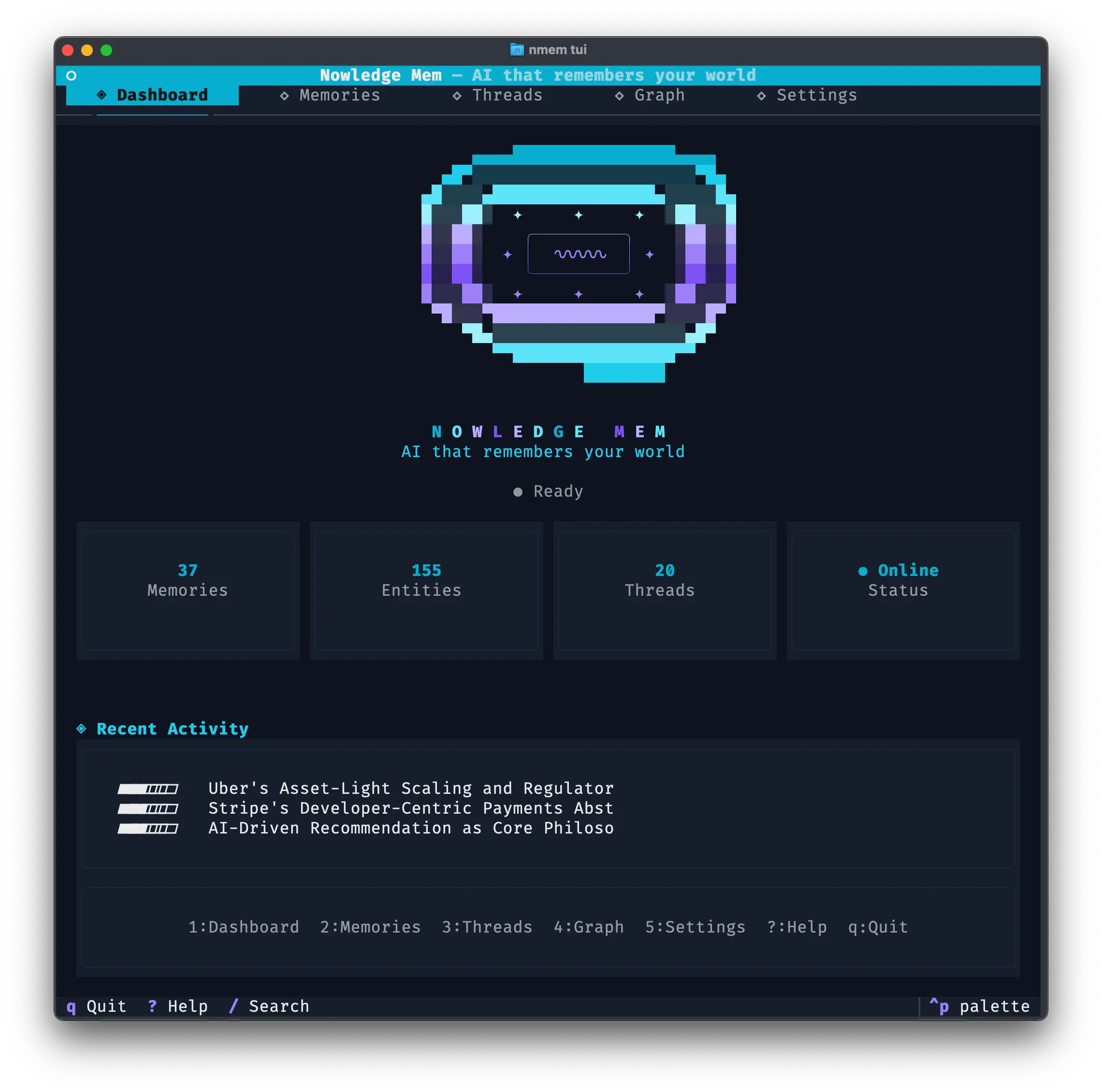
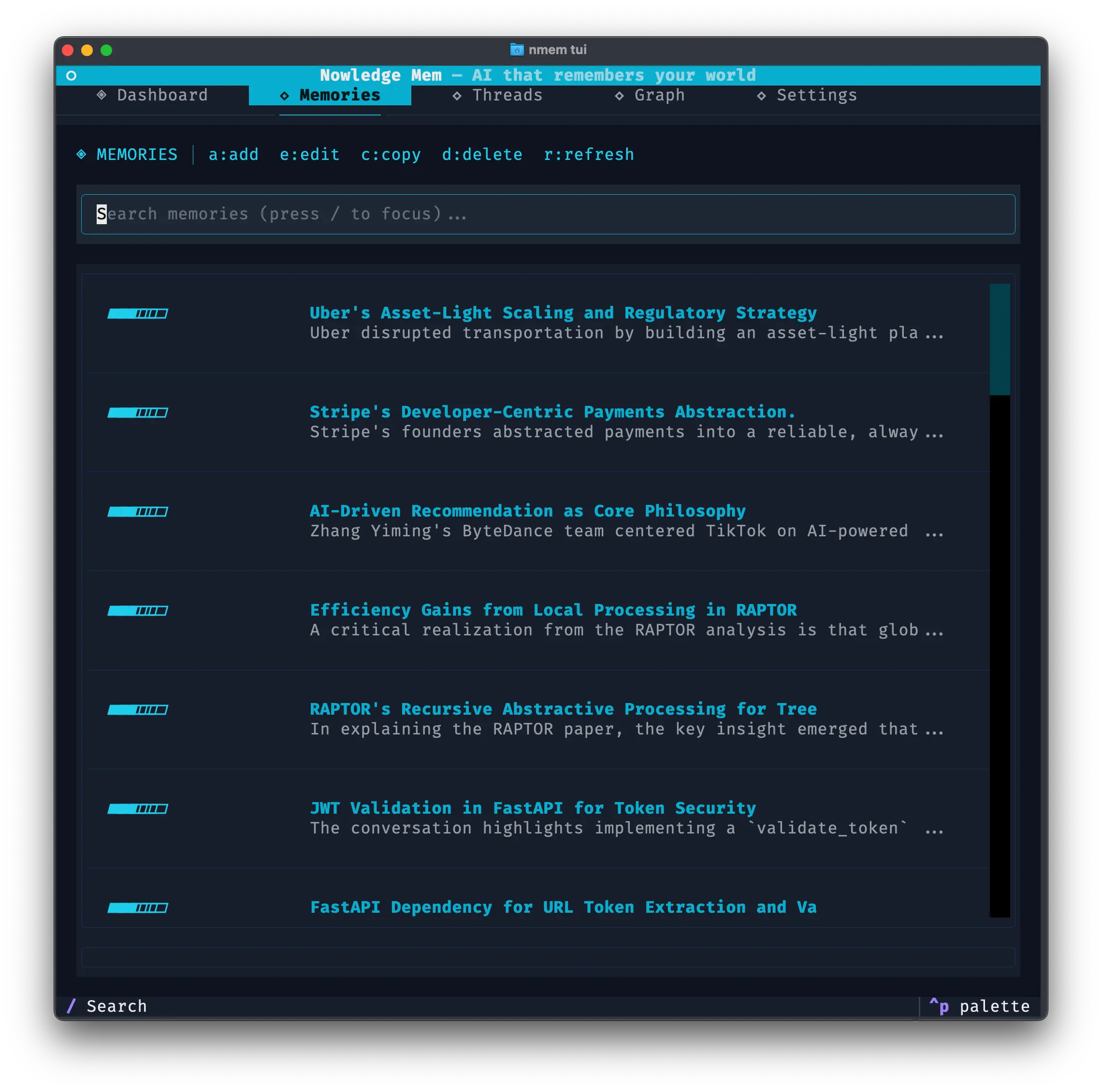
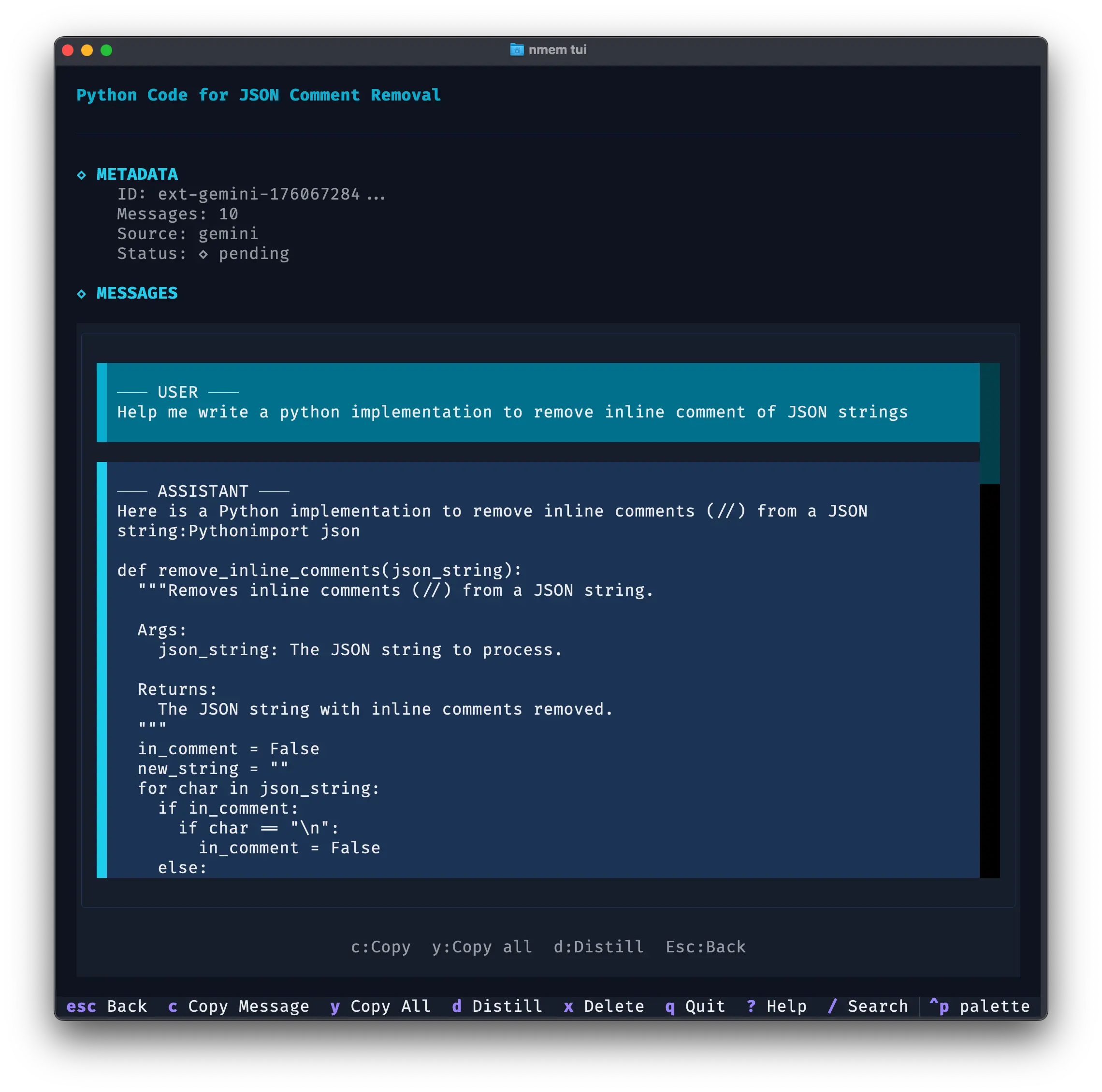
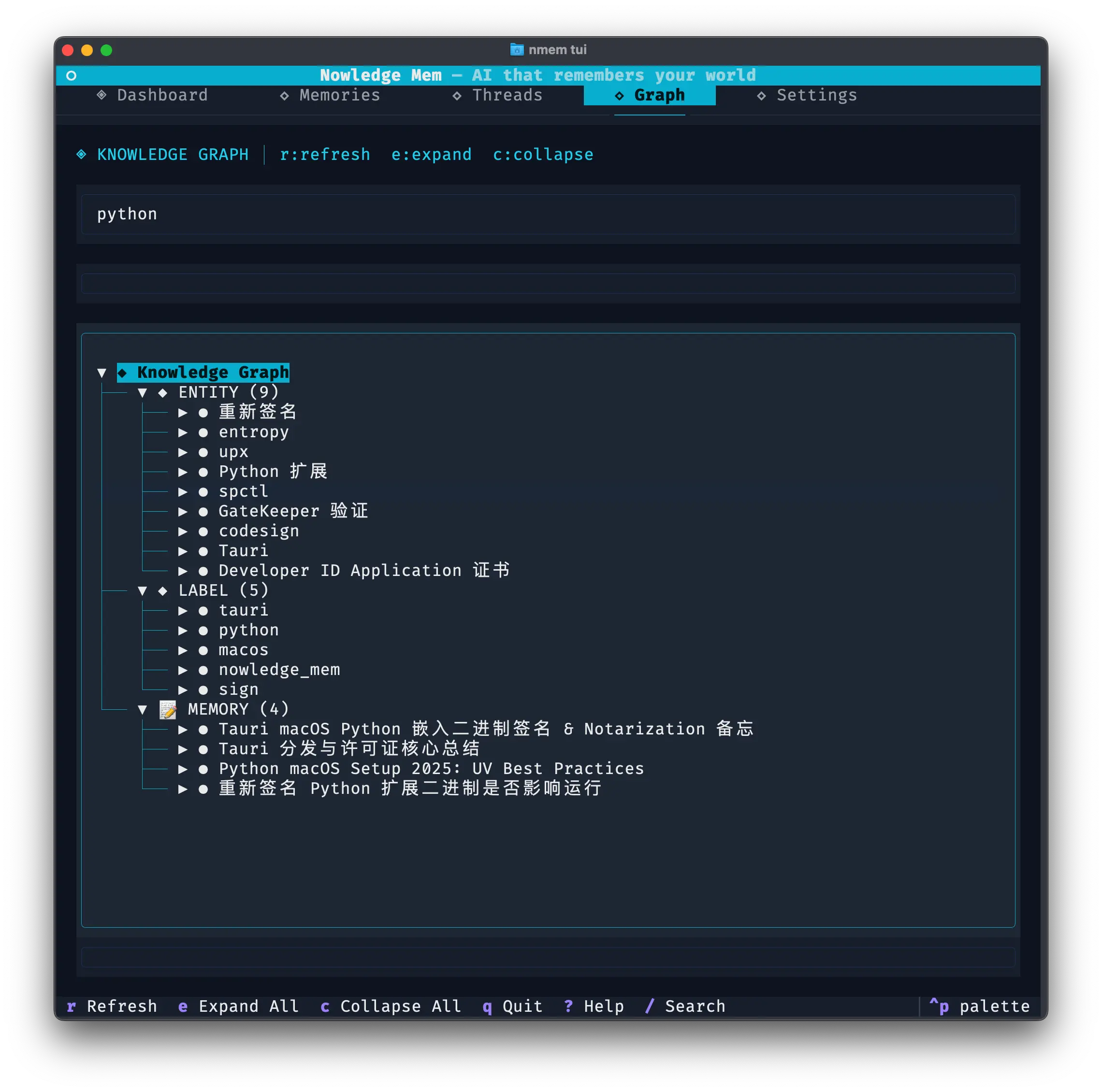
TUI
An interactive terminal UI for browsing memories, threads, and the knowledge graph:
nmem tuiIf you launch the TUI with NMEM_SPACE="Research Agent", the Memories and Threads tabs stay inside that space. This is useful for agent workstations or terminal-only servers where one shell session belongs to one project or agent lane.
For moving many records between spaces, use the app or the nmem m move / nmem t move commands. The TUI keeps browsing and editing scoped, but it does not add a separate multi-select move workflow.
In the Settings tab, you can also manage Access Anywhere (Quick link / stable Cloudflare account mode) from terminal-only environments. This is the same remote-access feature documented in Access Mem Anywhere.
Troubleshooting
"command not found: nmem"
- PyPI install:
pip install nmem-cli(Python 3.11+) - Arch Linux:
yay -S nmem-cliorparu -S nmem-cli - Run without installing:
uvx --from nmem-cli nmem --help - macOS desktop: Settings → Preferences → Developer Tools → Install CLI
- Windows: open a new terminal after app installation
"Cannot connect to server"
- Ensure Nowledge Mem is running
- Try:
nmem --api-url http://127.0.0.1:14242 status - Check for proxy or VPN blocking localhost