
Feishu Bot
Ask Nowledge Mem from a Feishu group or private chat, and save one group message to your team's Space.
Once the bot is connected, people can use Nowledge Mem without leaving Feishu:
- In a group,
@the bot to ask a question. In a private chat, just send the question; no mention is needed. - To save a group message, reply to that message,
@the bot, and send保存. The bot saves only the message you replied to. - A 📌 emoji reaction is a shortcut for saving. Feishu's Pin / 置顶 action is different and does not save anything to Mem.
Nowledge hosts the connection, so there is no service for you to install or keep running. A group without a Space binding stays quiet.
Hosted running keeps every room on one write Space for the Feishu connector. A hosted answer is still limited by two permissions: the speaking member's readable Spaces and the adapter key's readable grant. The room binding decides where saves land; it is not a promise that every read comes from that room's Space. If you choose the advanced self-run path, reads follow the Spaces allowed by the agent key you provide.
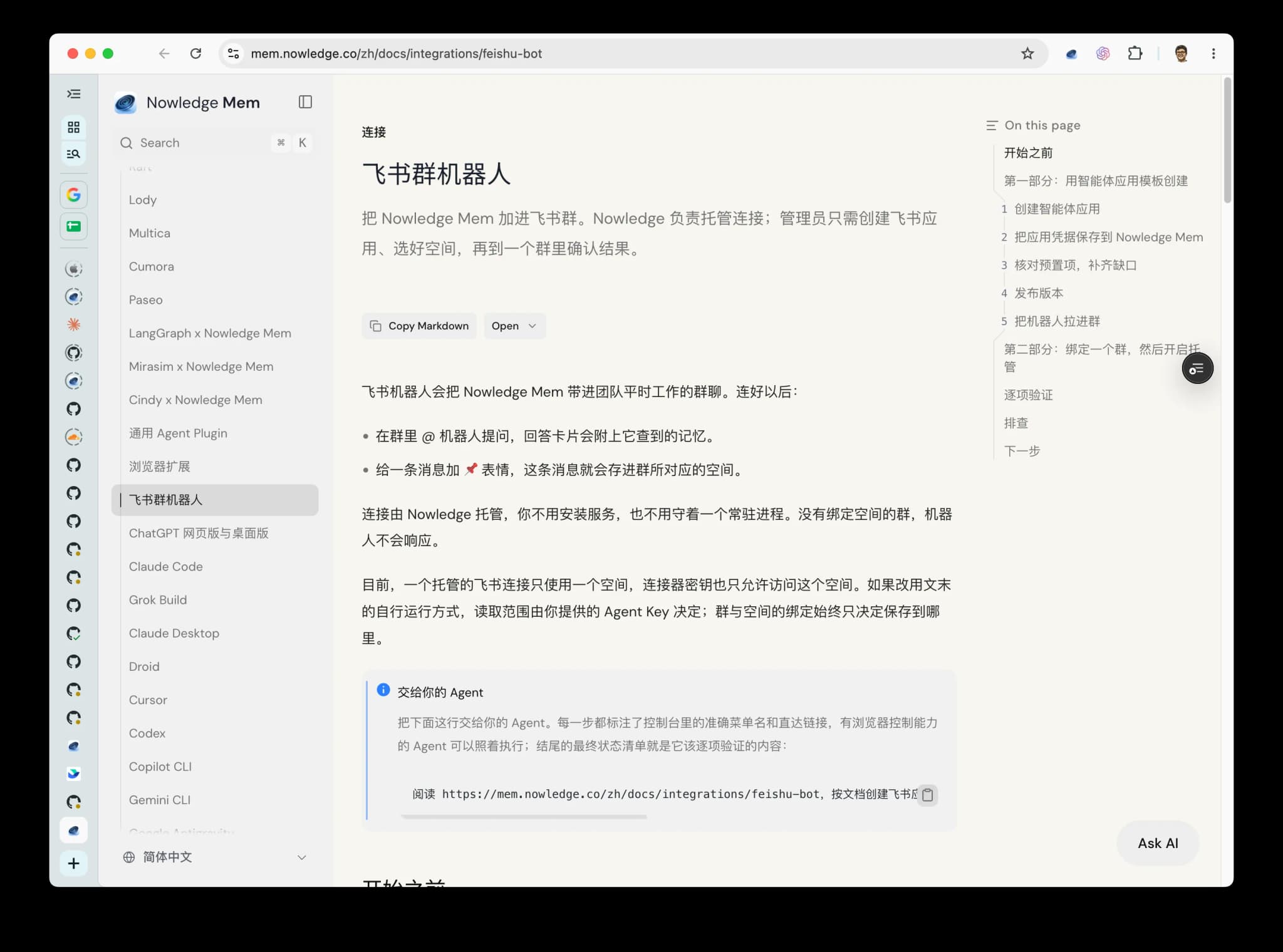
This guide uses hosted callbacks
Hosted and self-run are two different delivery paths. For hosted running, choose Feishu's 将事件发送至开发者服务器 (Send events to developer server) and let Nowledge receive the events. Feishu's default 使用长连接接收事件 (Use long connection to receive events) is for a self-run adapter; do not choose it for this hosted flow. Use the self-run appendix only when the connector must run inside your own network.
Follow this order
Save the Feishu callback credentials in Nowledge first, then bind one room and
turn on Hosted running. Wait until the panel says Connected. Only then
paste the callback URL into Feishu's event and card-callback settings. Feishu
verifies that URL immediately; submitting it before the Worker knows this app
will return an unknown_app response and the setup cannot continue.
For your agent
Give this line to your agent. The steps below carry exact console labels and deep links, so an agent with browser control can execute them; the final-state checklist at the end is what it should verify:
Read https://mem.nowledge.co/docs/integrations/feishu-bot and follow it to create the Feishu app and connect it to Nowledge Mem with hosted running. Stop and hand back to me for: console login, secret values, choosing the Space, and the version release approval.Before you start
- A Feishu tenant where you can create apps in the developer console. Publishing the app version needs a tenant admin's approval.
- A Nowledge Mem Team workspace with the connector surface: Connectors → Chat Apps → Feishu. If you do not see Feishu there, your workspace does not have this capability yet.
- About 10 minutes in the Feishu developer console.
What you must do yourself
Keep the App Secret, Verification Token, and Encrypt Key out of chat and screenshots. Paste them only into the matching fields in Nowledge Mem. A person should also choose the Space and approve the Feishu app release.
Create the Feishu app
The console's agent-app template saves a few setup steps. We will still check the permissions and switch its event delivery to Nowledge's hosted callback.
Create the agent app
- Open open.feishu.cn/app (开发者后台, Developer Console).
- At the top is the banner 创建飞书智能体应用 (Create Feishu Agent App): "为你预置智能体所需的权限、事件配置,一键创建后,即可接入你的智能体服务" (pre-provisions the permissions and event configuration an agent needs; one click and you can attach your own agent service). Click 立即创建 (Create Now).
- Give it a name (for example
Nowledge Mem) and a description.
If your tenant's console does not show this template, use the manual path in the appendix. The checklist below verifies both paths.
Save the app credentials in Nowledge Mem
- In the app's sidebar, open 凭证与基础信息 (Credentials & Basic Info).
- In Nowledge Mem, open Connectors → Chat Apps → Feishu.
- Enter and save the App ID (starts with
cli_) and App Secret in Nowledge Mem. - After the save succeeds, the panel unlocks the remaining steps and shows the complete, server-generated Event callback URL. Copy it exactly as shown for the later Feishu step; do not submit it yet and never build a hostname or App ID yourself.
- Keep this same Feishu app open and compare its App ID with the full App ID shown above the callback URL in Nowledge Mem. In that exact app, open 事件与回调 → 加密策略 (Events & Callbacks → Encryption strategy). Copy its Verification Token or Encrypt Key into the matching Optional setting in Nowledge Mem and save it. If both are enabled, save both. Hosted running cannot start until at least one callback credential is saved.
Already have an app in Feishu? Start here. You do not need to create a second app just to use the template.
The screenshot shows the values you copy from Feishu. The App Secret is masked on purpose; never reveal it in a support message or a screen recording.
Verify the presets, top up the gaps
The template starts with a broad preset. Check the four areas below and add only what is missing. Permissions are at open.feishu.cn/app/<App ID>/auth; events and callbacks are at open.feishu.cn/app/<App ID>/event.
a. Bot capability.
应用能力 → 机器人 (Features → Bot) should show the bot enabled. Give it the name and avatar people will @ in groups.
b. Permissions. Open 权限管理 (Permissions & Scopes) → 批量导入 (bulk import) and paste exactly this list. Already-granted permissions are simply skipped, so this is safe on top of the template's bundle:
im:message.group_at_msg
im:message.p2p_msg
im:message.reactions:read
im:message.reactions:write_only
im:message:readonly
im:message:send_as_bot
im:chat
im:chat.tabs:write_only
cardkit:card:write
cardkit:card:read
contact:contact.base:readonly
application:application:self_manage
Do not add im:message.group_msg (receive all group messages). Its absence is what makes "the bot only ever sees messages that mention it" a permission-layer fact you can verify in your own console, not a promise.
c. Events and callbacks — finish these after Hosted is connected.
Do not submit the URL while you are only checking the preset. Continue with the publish, group, bind, and Hosted steps below first. If Feishu asks for a callback URL before it lets you save this page, leave the page open and return here after the Nowledge panel says Connected. The template may also subscribe to events this bot does not use, such as document comments or meeting notes; the connector ignores them.
Publish a version
Always manual, on any path:
- Open 版本管理与发布 (Version Management & Release) → 创建版本 (Create Version).
- Fill in the version number and notes, then submit for release.
- A tenant admin approves the release in the Feishu admin console. Permissions and events only take effect after this.
Add the bot to a group
In the target Feishu group, type @ followed by the bot name you set. Select the bot and choose Add when Feishu offers it. This is the most direct path across the clients we verified. Some Feishu versions also expose Add Bot in the group's bot settings. Pick the bot from the same app whose App ID you saved in Nowledge Mem.
Bind one group and turn it on
Return to Connectors → Chat Apps → Feishu in Nowledge Mem after the app version is live and the bot is in a group.
- Refresh the room list and bind one group to the Space the bot should use.
- In Connection, turn on Runs hosted by Nowledge. Nowledge creates an adapter key scoped to the connector's write Space and uses it to run the bot. The browser never displays the key.
- Wait for the status to become Connected. The first fleet sync may take up to about five minutes.
- Keep this page open. Do not submit the callback URL to Feishu until the status is Connected.
Hosted running currently keeps every bound room on the same Space. If you need a different Space, turn hosted running off, change the bindings, then turn it on again. Turning hosted running off removes Nowledge's stored copy of the connector key, but it does not revoke the key. Revoke it separately under Members → Agent keys when you no longer need it.
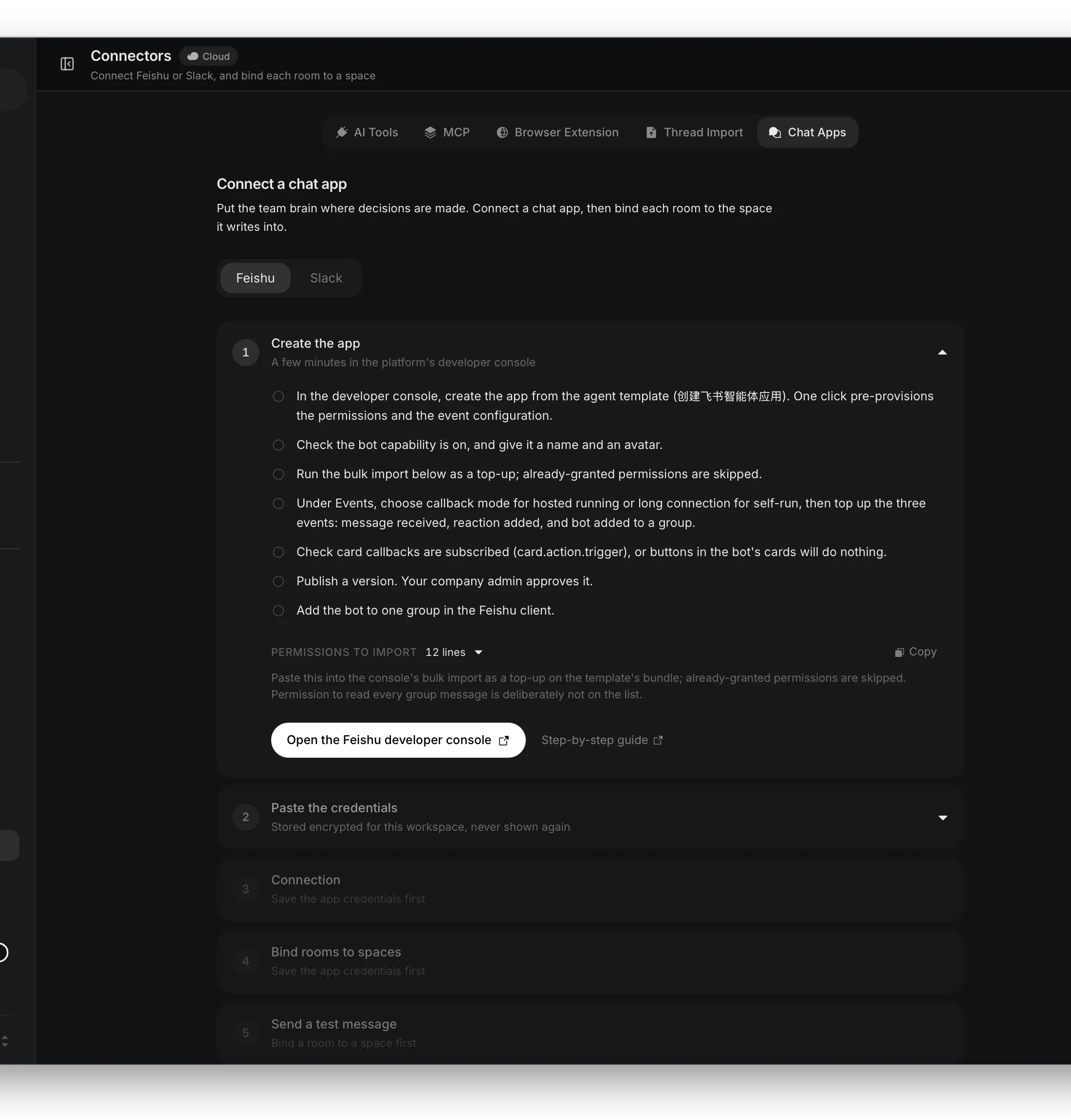
The panel keeps the prerequisites in order: save app credentials and callback authentication, bind a room, enroll Hosted running, wait for Connected, then test the bot. A step stays locked until the prerequisite is actually saved, so a disabled control is a useful signal rather than a hidden failure.
Finish the Feishu callback setup
Once the Nowledge panel says Connected, return to the Feishu developer console and complete the two callback settings:
- Under 事件与回调 → 事件配置, choose 将事件发送至开发者服务器 (not 使用长连接接收事件), paste the exact URL copied from Nowledge, and save it. Wait for Feishu's URL verification to succeed. Under 已添加事件, make sure these are present:
im.message.receive_v1,im.message.reaction.created_v1, andim.chat.member.bot.added_v1. - Under 事件与回调 → 回调配置 (direct link
.../event?tab=callback), choose the same HTTP callback option, paste the same URL, and subscribe tocard.action.trigger. Without this callback, buttons on the bot's cards do nothing. - Publish the new Feishu version if Feishu asks you to. Permissions, event subscriptions, and callback settings take effect only after the released version is live.
- Return to the bound group and send the test card. It proves that the bot can post to this room and shows the Space where saves will land. It does not prove that incoming Feishu events work; keep Connected visible in Mem and finish the live checks below.
- Ask one real question. In a group,
@the bot; in a private chat, send the question without an@. On a member's first use, the bot posts a short explanation in the group and sends that person a one-time secure link privately. Open the link, sign in to Mem, check the workspace and account, then click Confirm and connect. Send the question again. Each member does this once. - In the group, reply to one message,
@the bot, and send保存. After the save card arrives, try a 📌 emoji reaction as the shortcut. Do not use Feishu's Pin / 置顶 action; the platform does not send that action to the bot.
If you would rather connect your own account before asking, use Your Feishu account (你的飞书账号) → Connect Feishu account in Mem. Copy the short-lived challenge into a private chat with the bot, then return to Mem to confirm it.
Verify it works
The checklist is about final state, so it holds whichever path created the app. An agent (or you) can check every line:
- App ID starts with
cli_ - 应用能力 → 机器人 shows the bot capability enabled
- 权限管理 (
/app/<App ID>/auth) shows all 12 permissions from step 3b granted, andim:message.group_msgis not granted - Nowledge Mem shows the exact HTTPS Event callback URL and a saved Verification Token or Encrypt Key
- 事件配置 (
/app/<App ID>/event) selects 将事件发送至开发者服务器 (not long connection) with that exact URL, withim.message.receive_v1,im.message.reaction.created_v1, andim.chat.member.bot.added_v1among the added events - 事件与回调 → 加密策略 has at least one Verification Token / Encrypt Key from this same App ID saved in Nowledge Mem's Optional settings
- 回调配置 (
/app/<App ID>/event?tab=callback) selects the same callback mode and URL, withcard.action.triggersubscribed - 版本管理与发布 shows the version released (线上版本)
- The bot appears in the target group's bot list
- In Nowledge Mem, Hosted running is on, the connection is Connected, and the room is bound to the intended Space
- The test card arrived in the group and names the intended save Space; Connected still appears in Mem
- A member can
@the bot in the group, follow the private one-time link if asked, and receive an answer card after sending the question again - The same linked member can ask in a private chat without an
@ - Replying to one group message with
@<bot name> 保存produces a save confirmation for exactly that message - A 📌 emoji reaction also saves the selected group message; Feishu's Pin / 置顶 action does not count as a save
Troubleshooting
- Event configuration says「未配置」, and「添加事件」is disabled. Feishu defaults to 使用长连接接收事件. First confirm that Nowledge has a saved Verification Token or Encrypt Key, a bound room, and a Connected Hosted status. Then edit 订阅方式, choose 将事件发送至开发者服务器, paste the complete URL shown by Nowledge, and save. Add events only after URL verification succeeds.
- The app shows「待上线」or says「应用发布后,当前配置方可生效」. This is expected before release: save the configuration, then use 版本管理与发布 → 创建版本 and have a tenant admin approve it. The bot will not receive production events before approval.
- The bot is silent in a group. Almost always by design: the room is not bound to a Space. Bind it in Connectors → Chat Apps → Feishu → Bind rooms to Spaces.
- The bot sends a link prompt instead of answering. This is the normal first-use step. Open the one-time link that the bot sent to that member's private chat, sign in to Mem, check the workspace and account, and click Confirm and connect. Then send the question again. If the private message did not arrive, use Your Feishu account → Connect Feishu account in Mem and send its short-lived challenge to the bot privately. Never post a link or challenge in a group.
- The bot does not react to plain messages that name it. This is expected. The
group_at_msgpermission from step 3b delivers only real@mentions. - Card buttons do nothing. The
card.action.triggercallback from the callback setup above is missing, or the version has not been released. - Sending
保存starts an answer instead of saving. Reply to the exact message first, then@the bot and send保存. A save command without a reply has no safe target. - The 📌 emoji does nothing. Use the primary flow instead: reply to the message,
@the bot, and send保存. If you run the connector yourself, check the loggedemoji_typeagainstFEISHU_SAVE_EMOJI; hosted customers can send the value to support. - Pin / 置顶 does nothing in Mem. This is expected. Feishu does not expose a Pin event to the bot. Use reply +
@<bot name> 保存, or add a 📌 emoji reaction. - You cannot save a private-chat message. Private chat supports questions, but private-message saving is not available yet. Save team decisions from a bound group so the destination Space is explicit.
- You cannot find Add Bot in the group settings. Feishu moves this control between client versions. In the target group, type
@followed by the bot name, select it, and choose Add. If your client does expose group bot settings, Add Bot there is an alternative. Then refresh the room list in Nowledge Mem. - Feishu rejects the callback URL. Confirm that the Nowledge panel already says Connected, then confirm the subscription method is 将事件发送至开发者服务器. Copy the URL again from Nowledge Mem; do not type the hostname or App ID by hand. Confirm that the App ID above the callback URL matches the open Feishu app, and that app's Verification Token or Encrypt Key from 事件与回调 → 加密策略 is saved under Optional settings.
- Events never arrive. Check that the app version was released and Hosted running is on. Feishu does not activate new permissions or event subscriptions before release.
- Hosted running will not turn on. Save a Verification Token or Encrypt Key, bind at least one room, and make sure all hosted rooms use the same write Space. If the control is unavailable on a Cloud deployment, ask the workspace administrator to finish the Hosted Worker deployment; do not start an adapter yourself unless you operate that infrastructure.
Next steps
- Add another room only if it should use the same hosted Space. Use a separate connector or the self-run path if the bot needs a different set of readable Spaces.
- Spaces explains the container the bot reads from and writes into.