Your Notes, Everywhere
Obsidian, Notion, PDFs, Word docs -- one search covers everything. Keep your tools, wire them into your knowledge.
The Problem
You've been taking notes for years. Obsidian. Notion. Maybe both.
Thousands of entries. Carefully tagged. Extensively linked.
And yet...
I know I wrote about this. I just can't find it. The search is useless. The tags don't help.
Worse: Your AI assistant has no idea any of this exists. You're explaining context that's already in your notes. Every. Single. Time.
The Solution
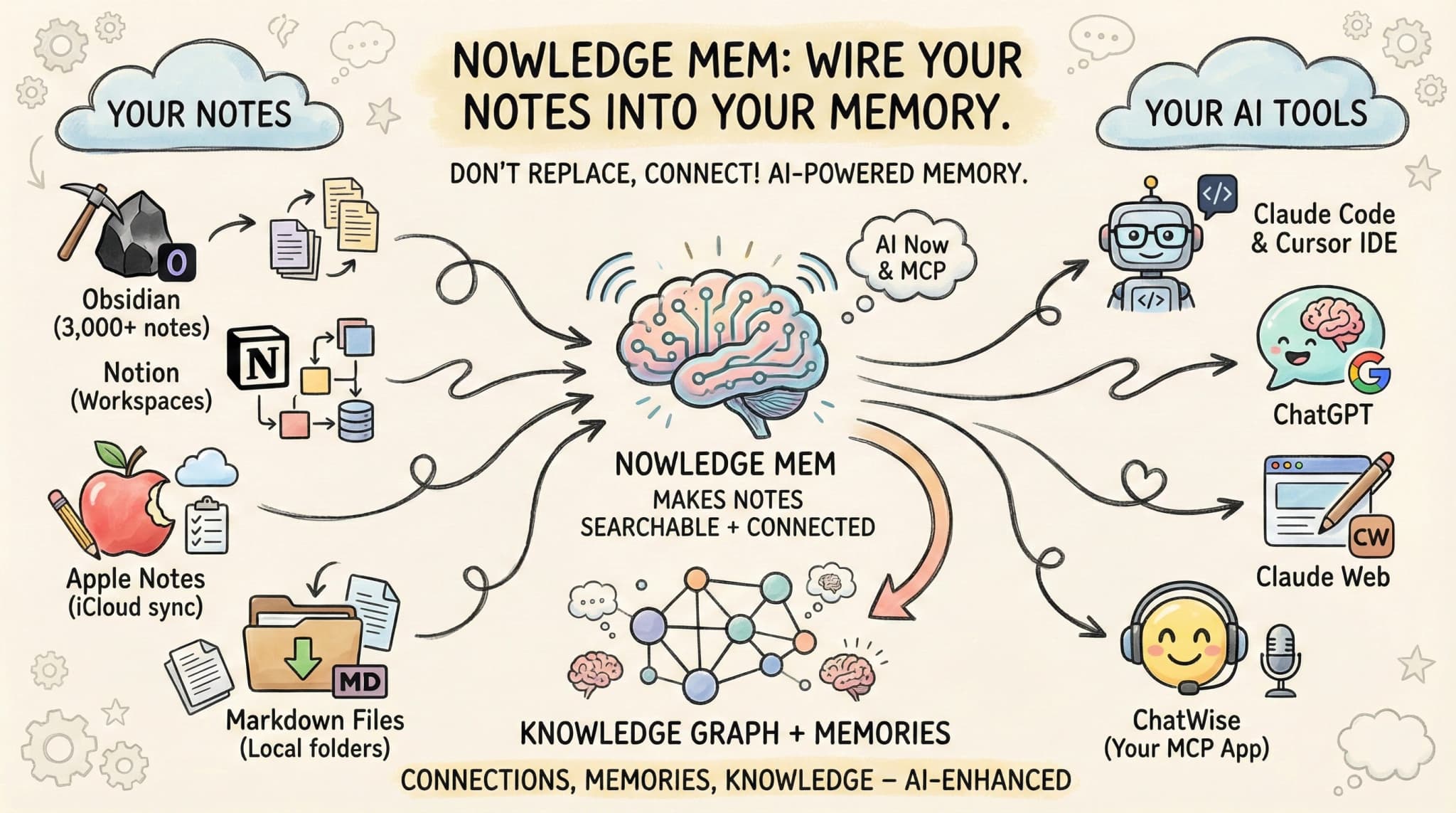
We don't replace your note app. We wire it into your knowledge.
Keep using Obsidian, Notion, Apple Notes or folders of Markdown files exactly as you do now. Nowledge Mem connects to them, making your notes searchable alongside your memories in AI Now and across the AI tools you connect to Mem.
And with the Library, you can drop PDFs, Word documents, and presentations in too. Everything becomes searchable from one place.
How It Works
Connect Your Notes
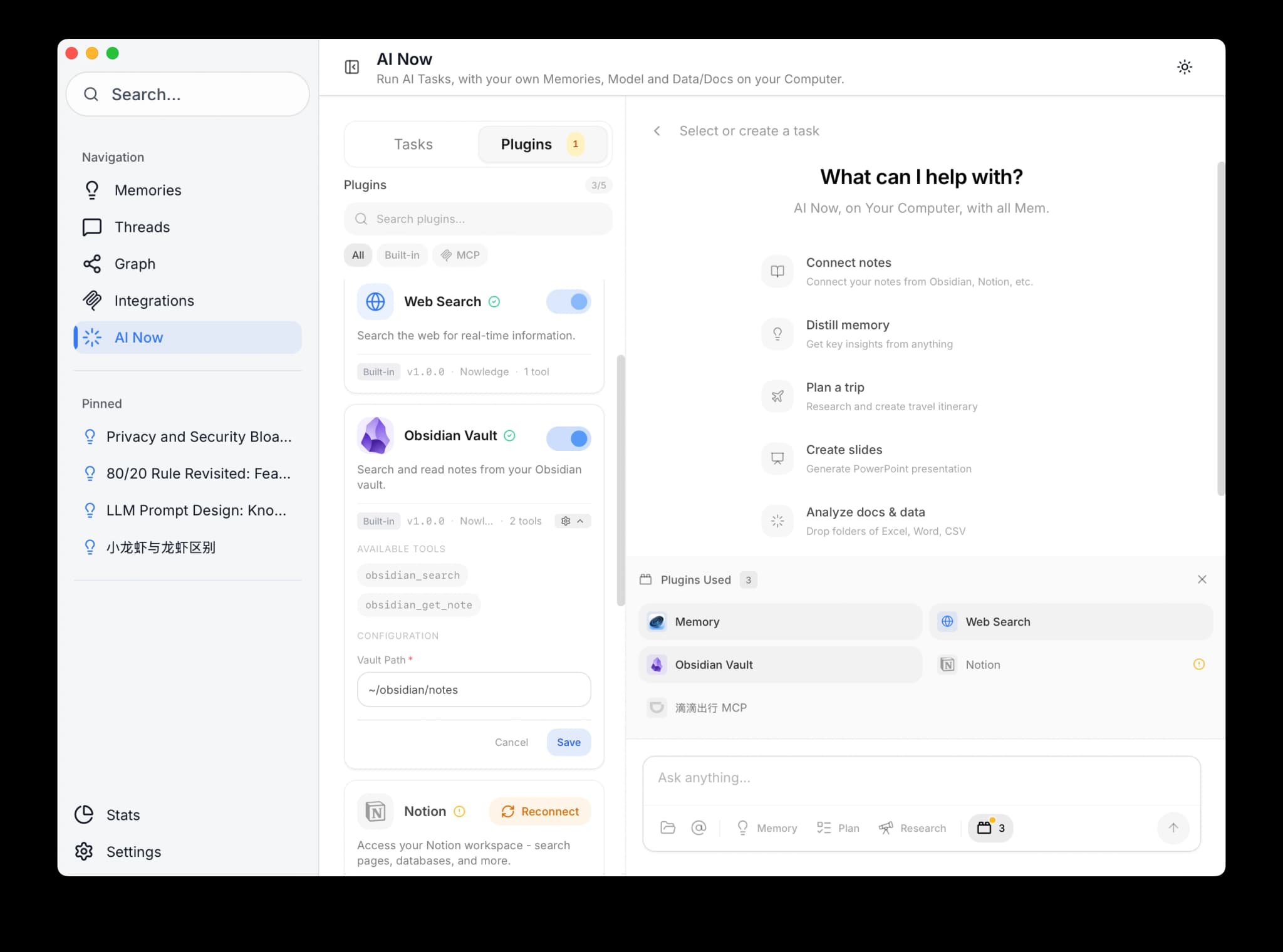
Obsidian:
- Open AI Now in Nowledge Mem
- Go to Plugins -> Enable Obsidian
- Set your vault path (e.g.,
/Users/you/Documents/ObsidianVault) - Done. AI Now can now search your vault
Notion:
- Open AI Now -> Plugins -> Enable Notion
- Click Connect with Notion
- Authorize access in the browser popup
- Your workspace is now accessible
Import Documents to the Library
Drop files directly into the Timeline input or open the Library view:
| Format | Extensions | What Happens |
|---|---|---|
| Text extracted, split into segments, indexed | ||
| Word | .docx, .doc | Parsed to text, segmented, indexed |
| Presentations | .pptx | Slide content extracted and indexed |
| Markdown | .md | Parsed and indexed directly |
Once indexed, document content is searchable alongside your memories and notes.
Search Across Everything
Ask AI Now any question:
What do my notes say about quantum computing?
AI Now:
- Searches your Obsidian vault
- Searches your Notion workspace
- Searches your Nowledge memories
- Searches your Library documents
- Combines and synthesizes results
One question. All your knowledge sources.
Distill Into Memories
Found valuable notes? Turn them into permanent memories:
Distill the key insights from these quantum computing notes
AI Now creates:
- Insight: "Quantum error correction requires O(n^2) qubits"
- Decision: "Focus on NISQ algorithms for near-term research"
- Fact: "IBM claimed quantum advantage Dec 2023"
These memories are now:
- Searchable with semantic understanding
- Connected in the knowledge graph
- Accessible across the AI tools you connect to Mem
- Part of your Working Memory briefing when relevant
Obsidian Integration
Setup
Open Nowledge Mem
Open the Nowledge Mem app.
Click the AI Now tab
Select the AI Now tab in the sidebar.
Go to Plugins
Open Plugins in the sidebar.
Enable Obsidian
Find Obsidian and toggle it on.
Enter your vault path
Example: /Users/yourname/Documents/ObsidianVault
What You Can Do
Once connected:
- Search notes by content: "Find my notes about machine learning"
- Read specific notes: "Show me the note about project kickoff"
- Reference in context: "Based on my Obsidian notes about X, help me..."
Privacy First
Your vault is read locally. Notes are never uploaded anywhere. Nowledge Mem just reads the files on your machine.
Notion Integration
Setup
Open AI Now Plugins
Open AI Now → Plugins.
Connect Notion
Find Notion and click Connect.
Authorize in the browser
Complete authorization in the browser popup.
Select workspaces
Select the workspaces you want to connect.
What You Can Do
- Search your workspace: "Find pages about quarterly planning"
- Read page content: "What's in my Product Roadmap page?"
- Cross-reference: "Compare my Notion notes with my memories about X"
- Deep Research with both public information and private knowledge: "What's the latest on quantum computing?"
OAuth Connection
Notion uses secure OAuth. You control exactly which pages Nowledge Mem can access. Revoke anytime from Notion settings.
Built-in Connectors
Some tools have Nowledge Mem built in:
- DeepChat: Toggle Nowledge Mem in settings. Your memories become available in every chat.
- LobeHub: Install from the marketplace. Full MCP integration.
- Apple Notes (macOS): Search your Apple Notes through AI Now after enabling the built-in plugin.
Join the Community to request connectors.
Next Steps
- AI Now -> Learn what else AI Now can do
- Library -> Import and search documents
- See Your Expertise -> Visualize your knowledge graph
- Connectors -> Full setup guides